Next to each visualization in the list, you have the following options to manage it:
- Tag — used to group visualizations
- Publish status— shows one of three statuses: Not published, Published, or Published with changes
- Menu options — opens a menu with 3 to 8 actions, depending on the visualization's publish status and project member role
| Note: You can select more than one visualization and apply actions to all of them at once. See Visualization bulk options. |
Tag
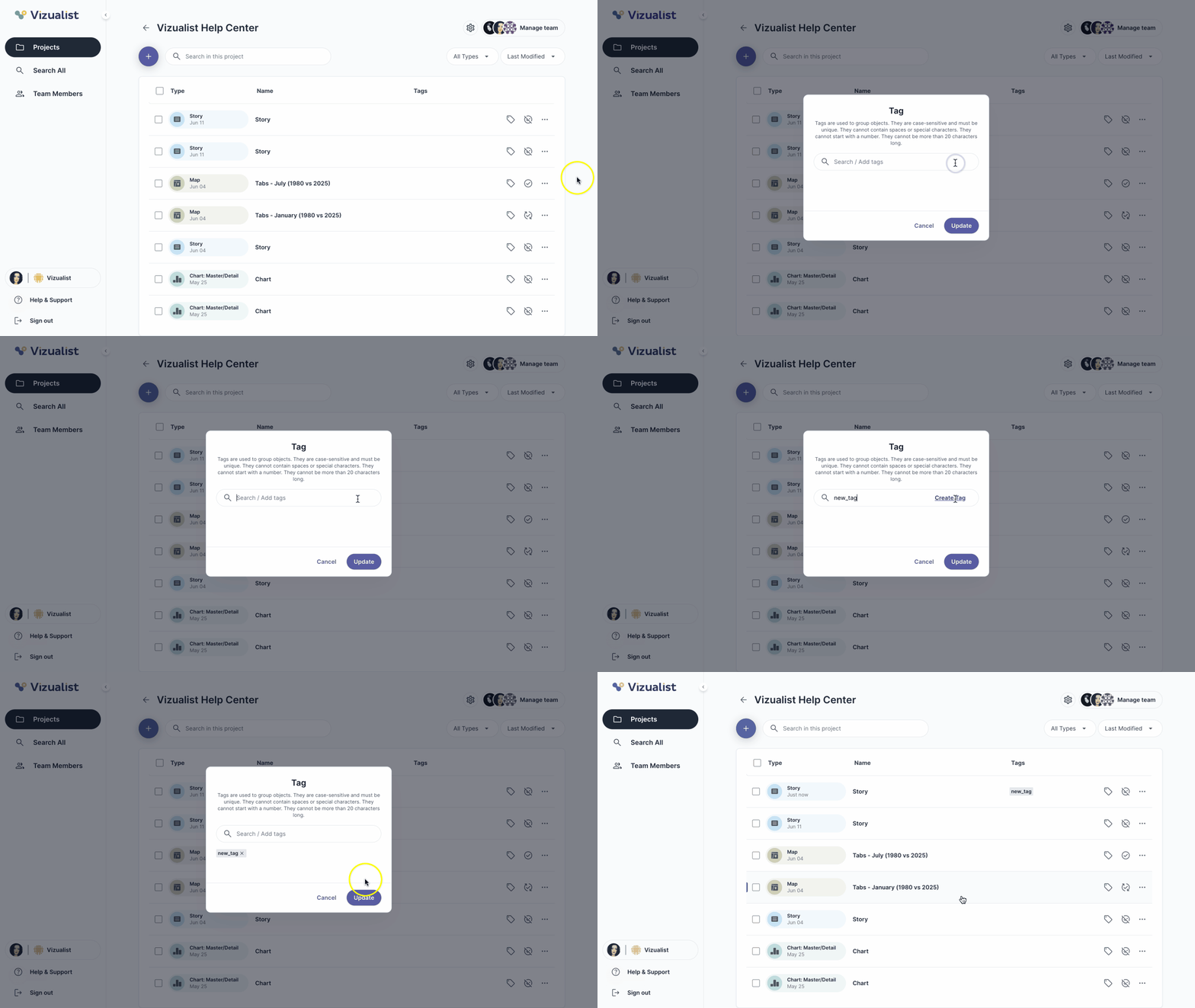
Tags must follow these rules:
- Must be unique
- Case-sensitive
- No spaces or special characters
- Cannot start with a number
- No longer than 20 characters
To tag a visualization:
- Next to the visualization name, click the tag icon sell.
- Search for an existing tag or type a new one.
- Click Update.
Publish status
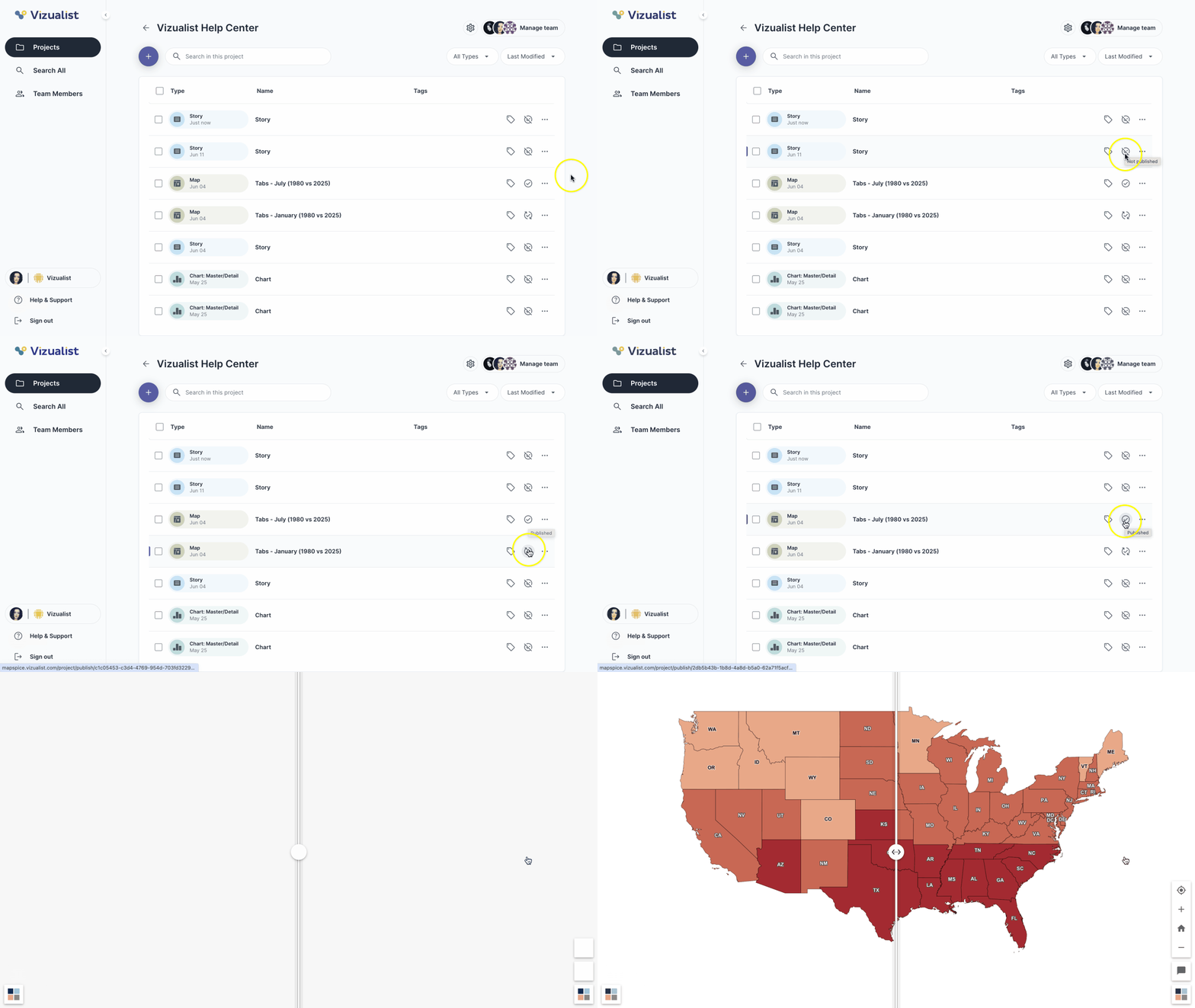
- Not published unpublished — the visualization hasn't been published yet
- Published check_circle — the visualization is live and matches the published version
- Published with changes published_with_changes — the visualization is live, but has unsaved edits that haven't been published yet
| Note: For visualizations marked as Published or Published with changes, clicking the publish status icon opens the published version of the visualization. |
Menu options
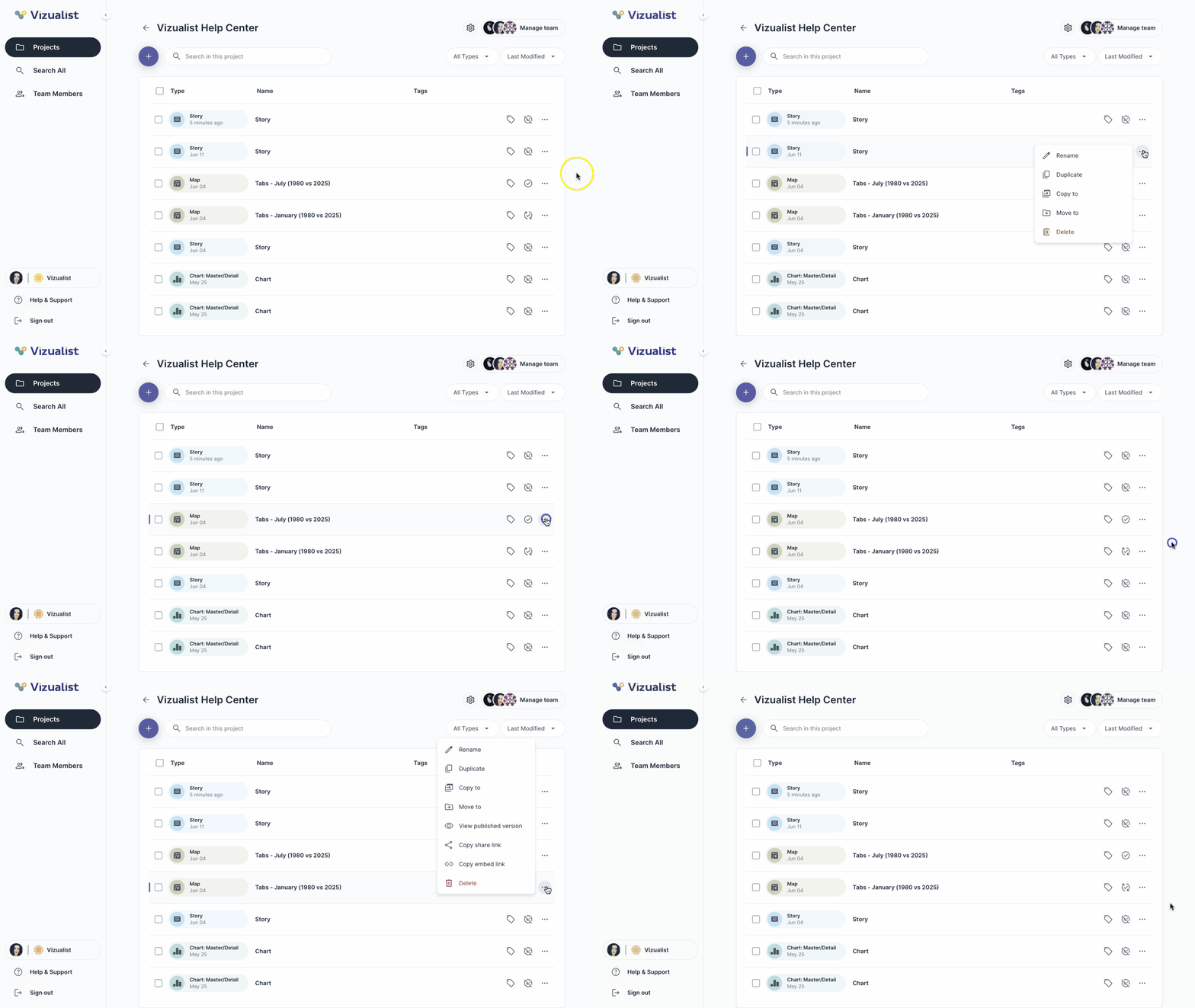
The actions available in Menu options depend on the visualization's publish status and project member role.
Publish status: Not published
- Rename — change the visualization's name
- Duplicate — create a copy of the visualization in the same project
- Copy to — copy the visualization to another project
If you're an admin, you also have:
- Move to — move the visualization to another project
- Delete — permanently remove the visualization
Publish status: Published and Published with changes
- Rename — change the visualization's name
- Duplicate — create a copy of the visualization in the same project
- Copy to — copy the visualization to another project
- View published version — open the live, published version of the visualization
- Copy share link — copy a shareable link to the visualization
- Copy embed link — copy a link for embedding the visualization elsewhere
If you're an admin, you also have:
- Move to — move the visualization to another project
- Delete — permanently remove the visualization
| Note: For more information about Menu options options, see Visualization menu options. |