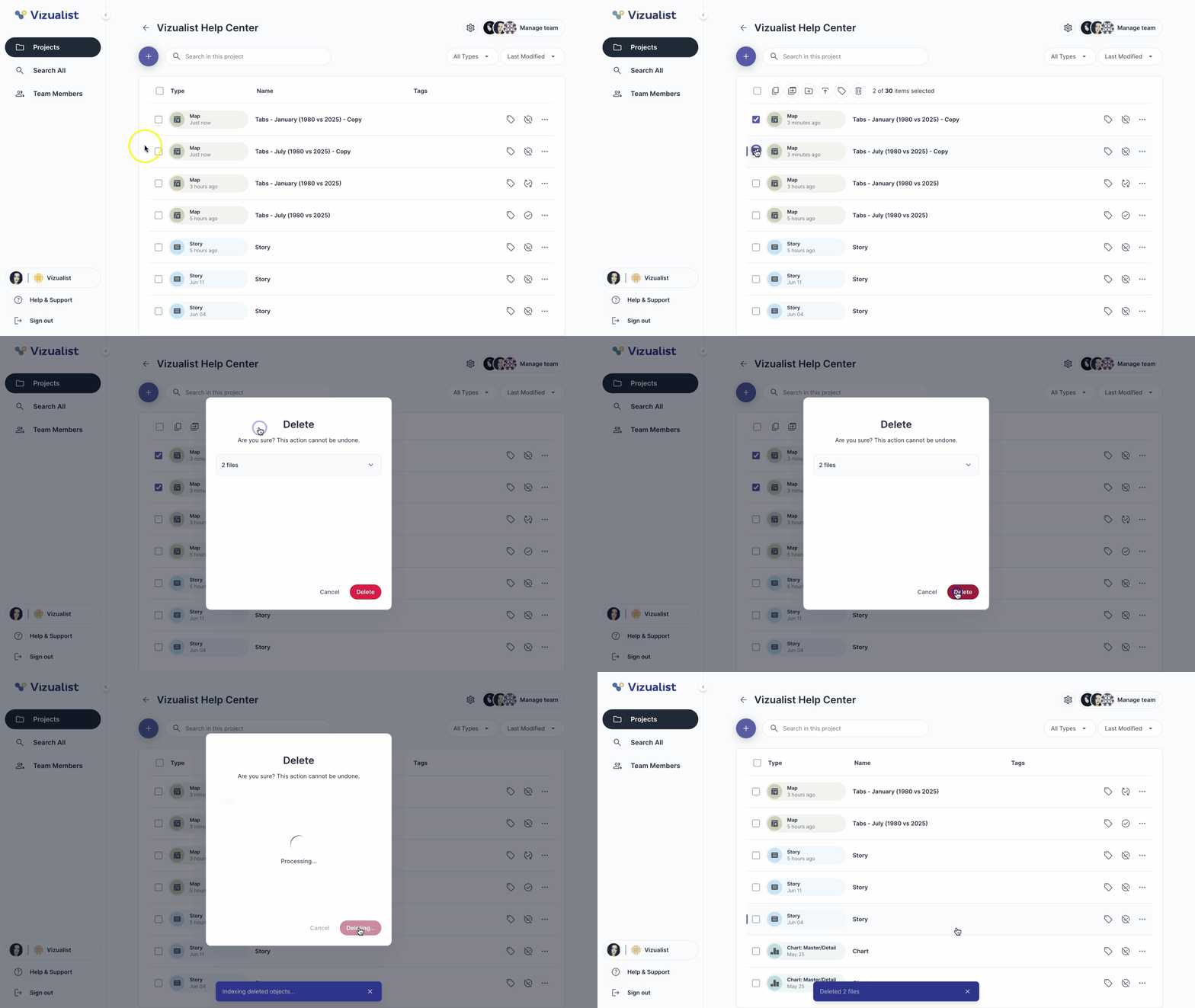
Multiple visualizations can be selected at once, either one by one or by clicking Select all. Once visualizations are selected, you can choose one of the following actions:
- Duplicate — create a copy of each selected visualization in the same project
- Copy to — copy the selected visualizations to another project
- Move to — move the selected visualizations to another project
- Publish — publish all selected visualizations at once
- Tag — apply a tag to all selected visualizations
- Delete — permanently remove all selected visualizations
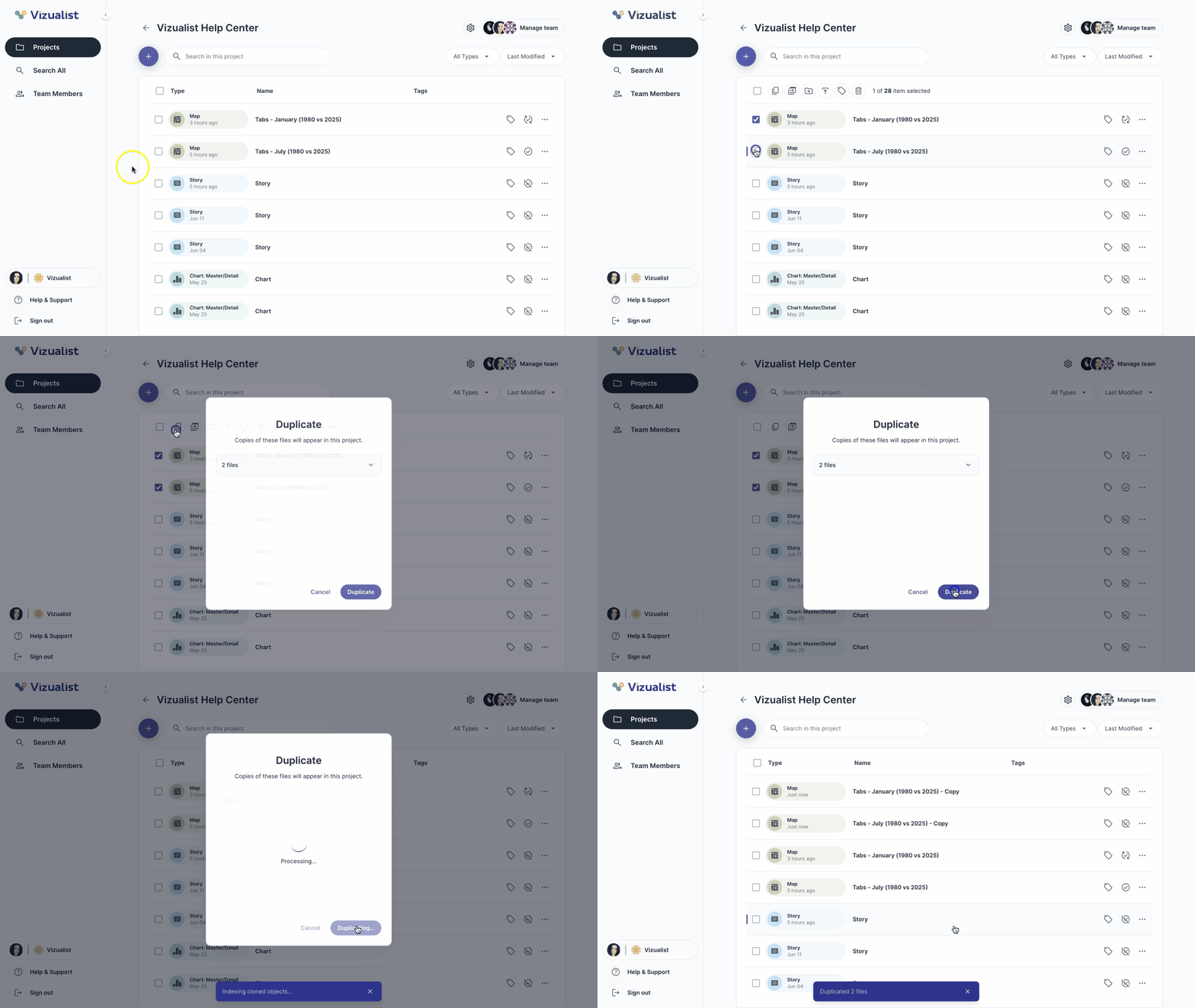
Duplicate
- Select one or more visualizations.
- Click the duplicate icon content_copy.
- Click Duplicate to confirm.
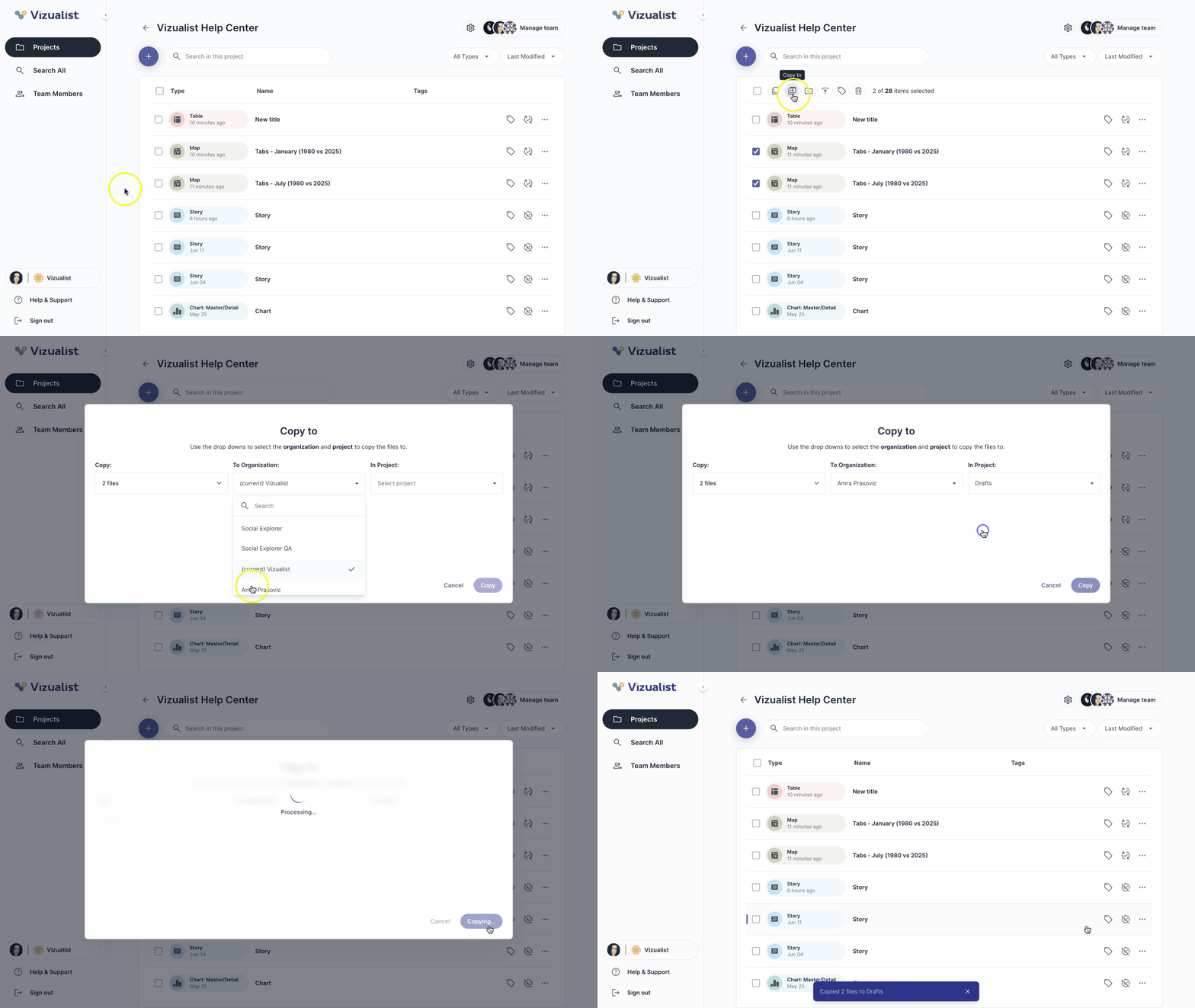
Copy to
- Select one or more visualizations.
- Click the copy icon move_group.
- Choose an organization.
- Choose a project.
- Click Copy.
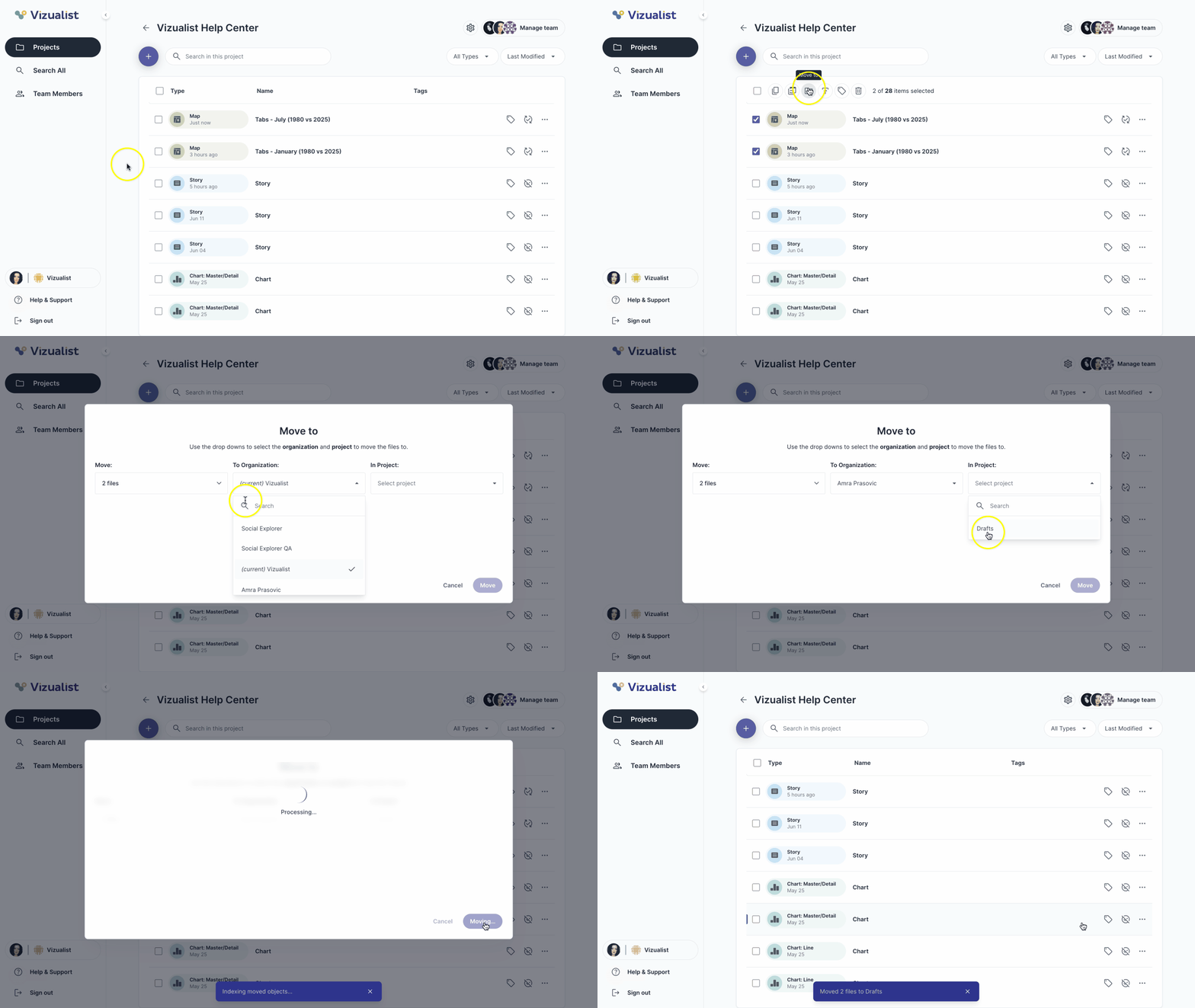
Move to
- Select one or more visualizations.
- Click the move icon drive_file_move.
- Choose an organization.
- Choose a project.
- Click Move.
| Note: This option is only available to project admins. |
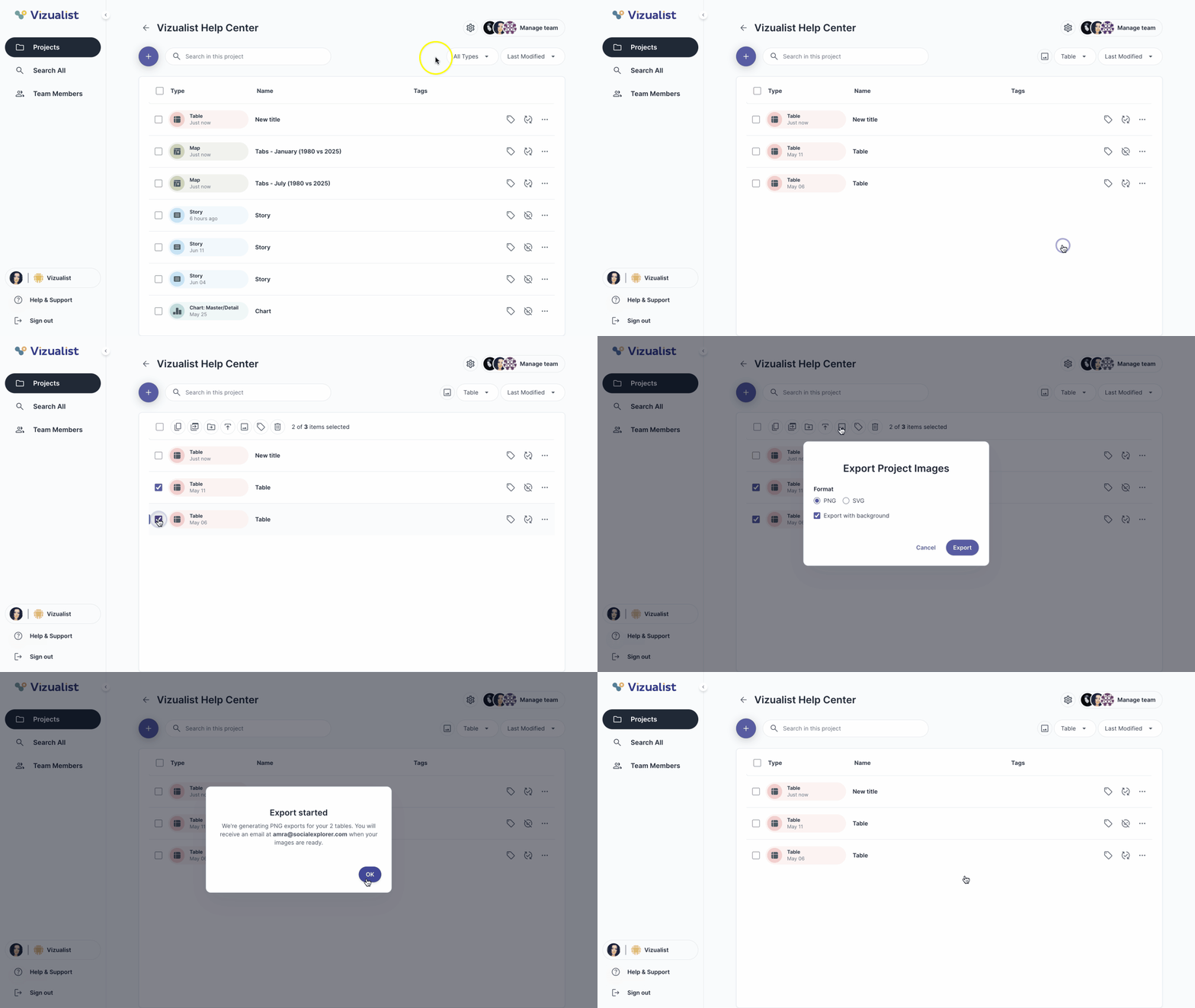
Export table images
If you select tables, an extra option becomes available to export table images:
- Select one or more tables.
- Click the export image icon image.
- Choose a format: PNG or SVG, with or without background.
- Click Export and then OK.
| Note: You will receive an email to download the images when they are ready. |
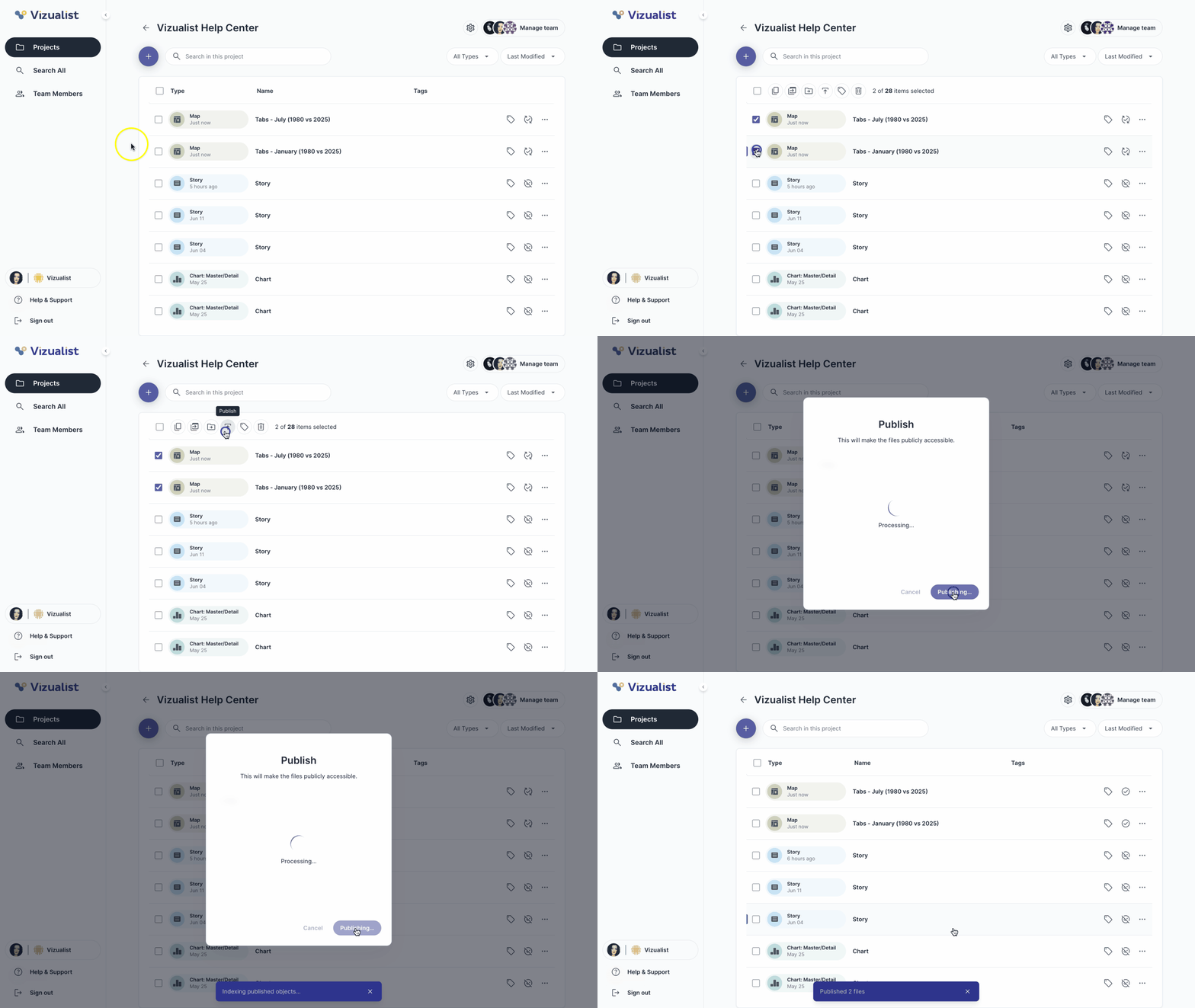
Publish
- Select one or more visualizations.
- Click the publish icon publish.
- Click Publish to confirm.
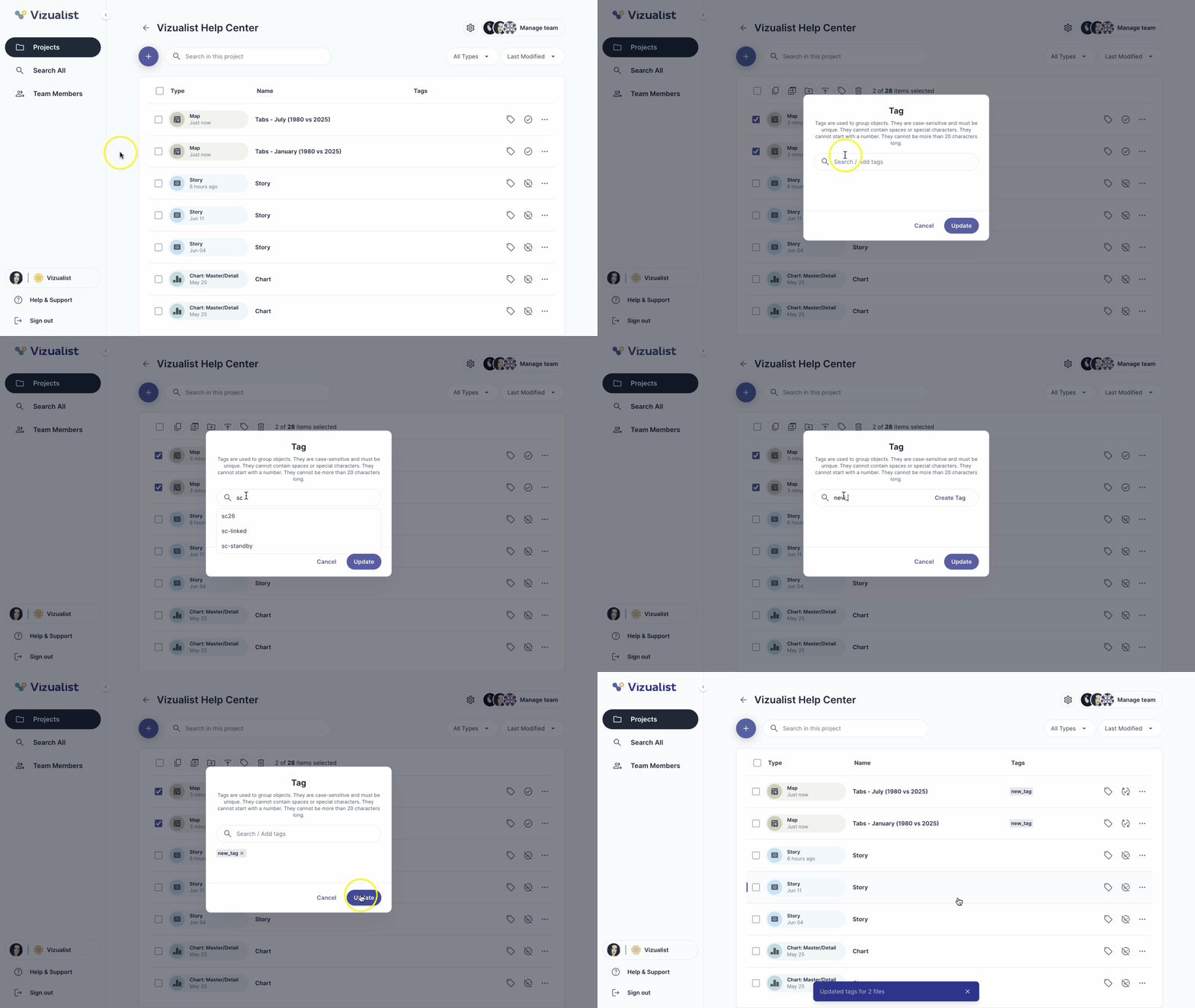
Tag
- Select one or more visualizations.
- Click the tag icon sell.
- Search for an existing tag or type a new one.
- Click Update.
Delete
- Select one or more visualizations.
- Click the delete icon delete.
- Click Delete to confirm.
| Note: This option is only available to project admins. |