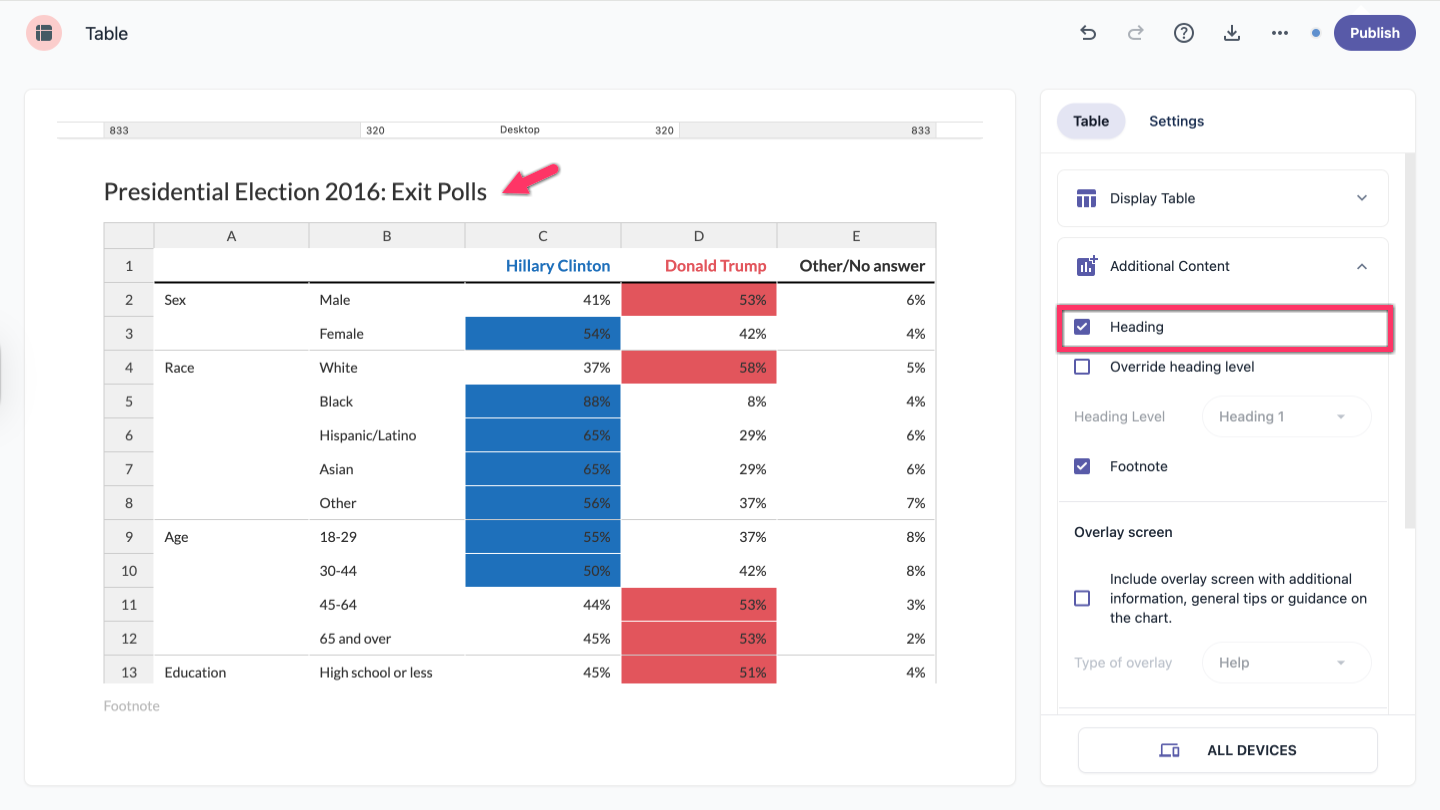
Heading
The heading option lets you add a title above your table. A placeholder appears above the table where you can enter your title.
The heading is enabled by default. To turn it off, open Additional Content in the right-hand sidebar and uncheck the heading checkbox.
| Note: Tables let you format the heading text. You can make the entire title—or just part of it—bold or italic, turn it into a hyperlink, and adjust the size and alignment. |
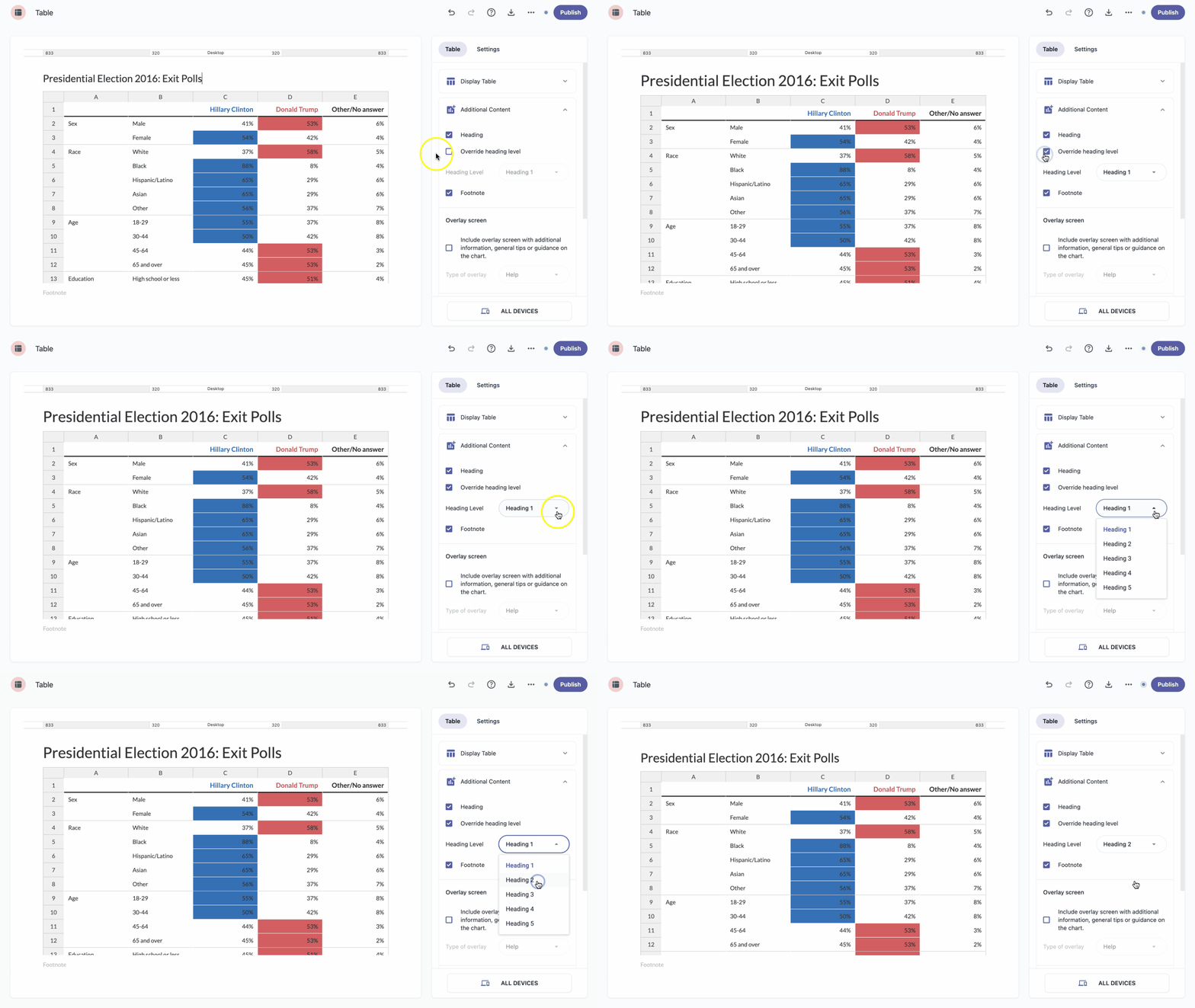
Override heading level
- In the right-hand sidebar, click Additional Content to open the dropdown menu.
- Click the checkbox to enable Override heading level.
- Choose a heading from the dropdown.
| Note: Five heading levels are available. |
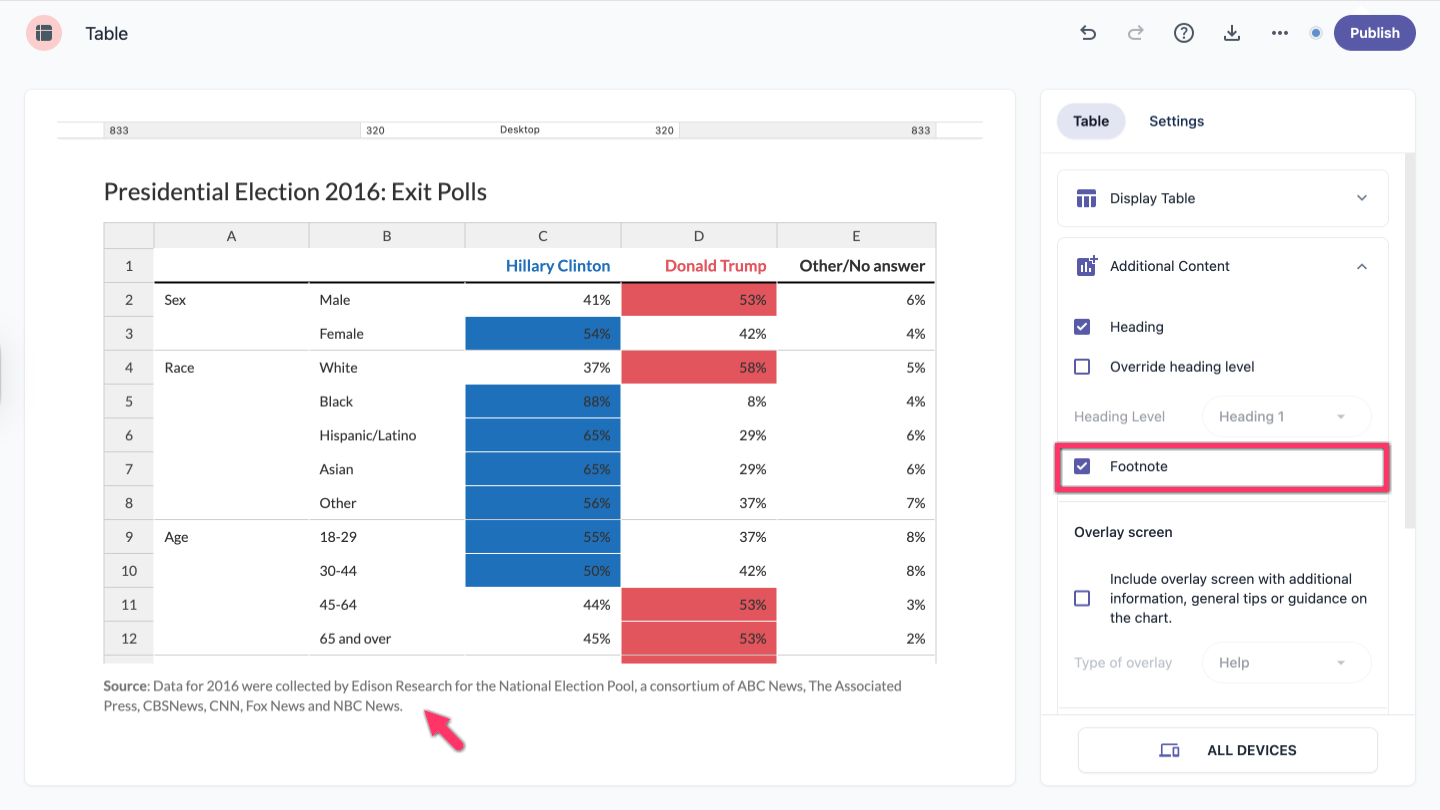
Footnote
Use footnotes to add a source or extra information about your table. The footnote appears in the lower-left corner of the table.
Footnotes are enabled by default. To turn them off, open Additional Content in the right-hand sidebar and uncheck the footnote checkbox.
| Note: Tables let you format the footnote text. You can make the entire text—or just part of it—bold or italic, turn it into a hyperlink, and adjust the alignment. |
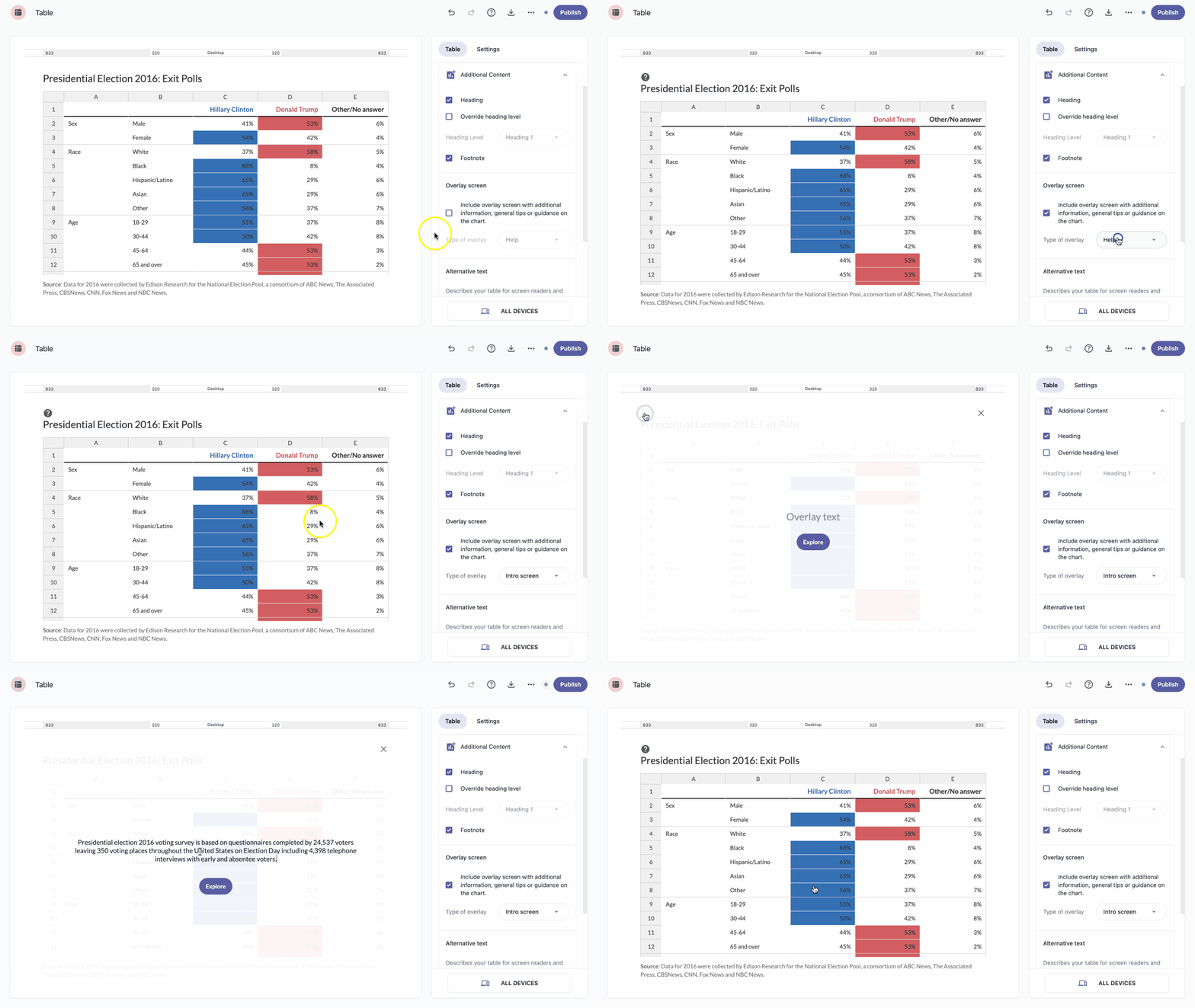
Overlay screen
- In the right-hand sidebar, click Additional Content to open the dropdown menu.
- Click the checkbox to enable the Overlay screen option.
- Select the overlay type from the dropdown.
- Click the question mark icon to open the overlay screen.
- Enter your text, then click Close or X to save and close.
| Note: Tables let you format the overlay text. You can make the entire text—or just part of it—bold or italic, turn it into a hyperlink, and adjust the size and alignment. |
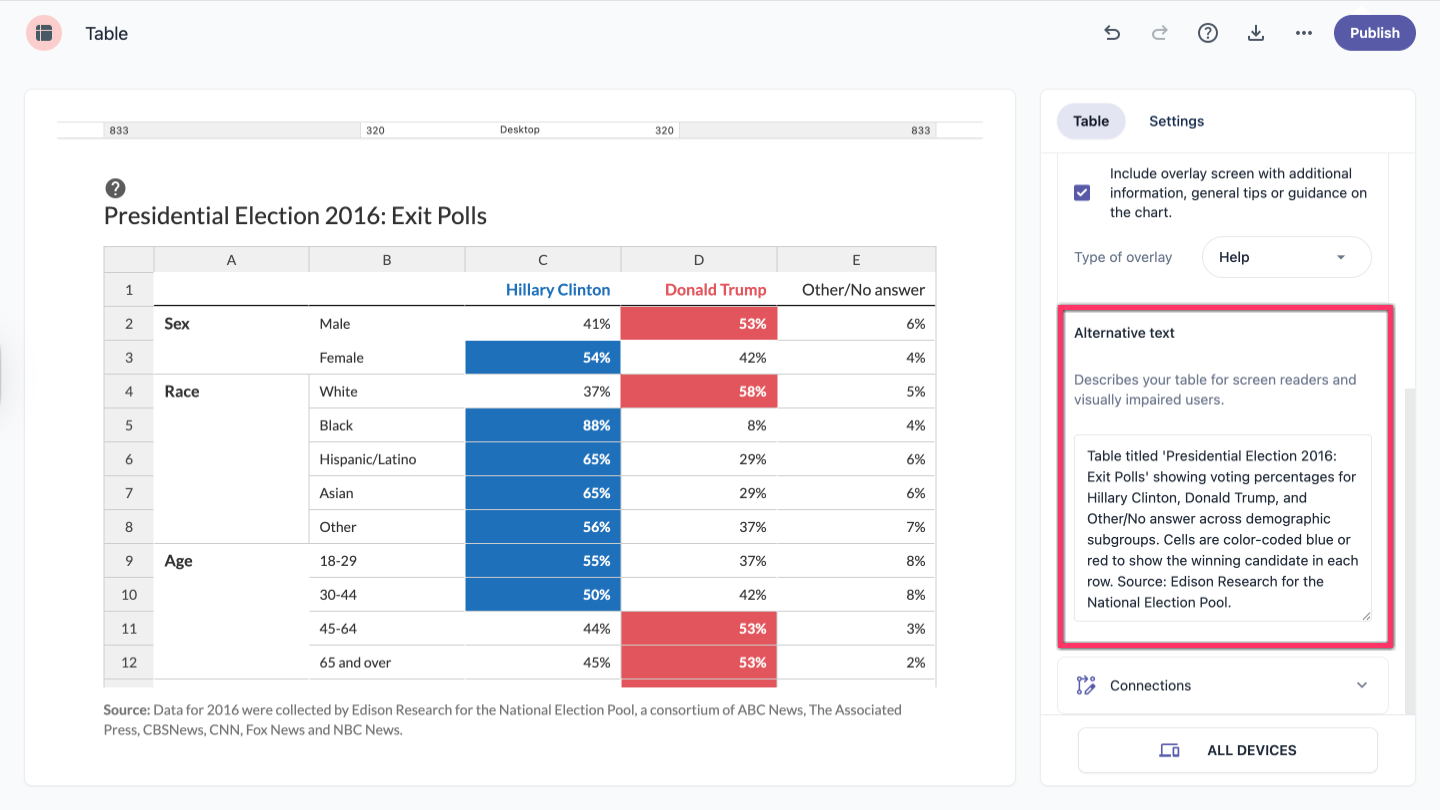
Alternative text
Alternative text makes your table accessible to people using screen readers, which convert on-screen content into speech.