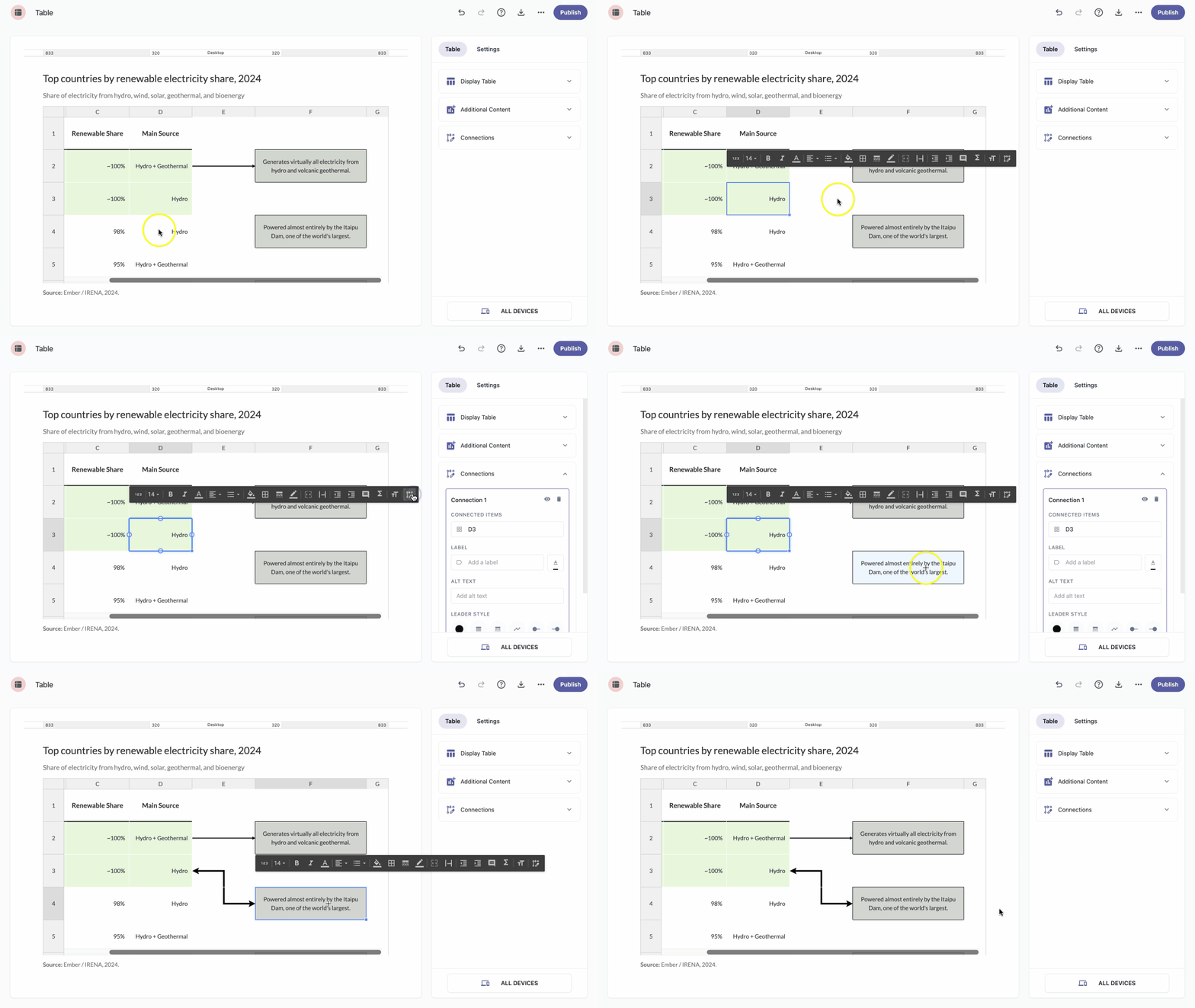
Leader lines let you visually connect related cells in your table and add explanatory notes that point to specific data points. When you add or select a leader line, the Connection panel opens in the table panel, where you can configure its label, style, and accessibility options.
Add a leader line
- Click the first cell you want to connect.
- A toolbar will appear above it.
- Click the leader line icon in the toolbar.
Click the second cell you want to connect.
Note: A leader line will appear between the two cells, and the Connection panel will open so you can customize it.
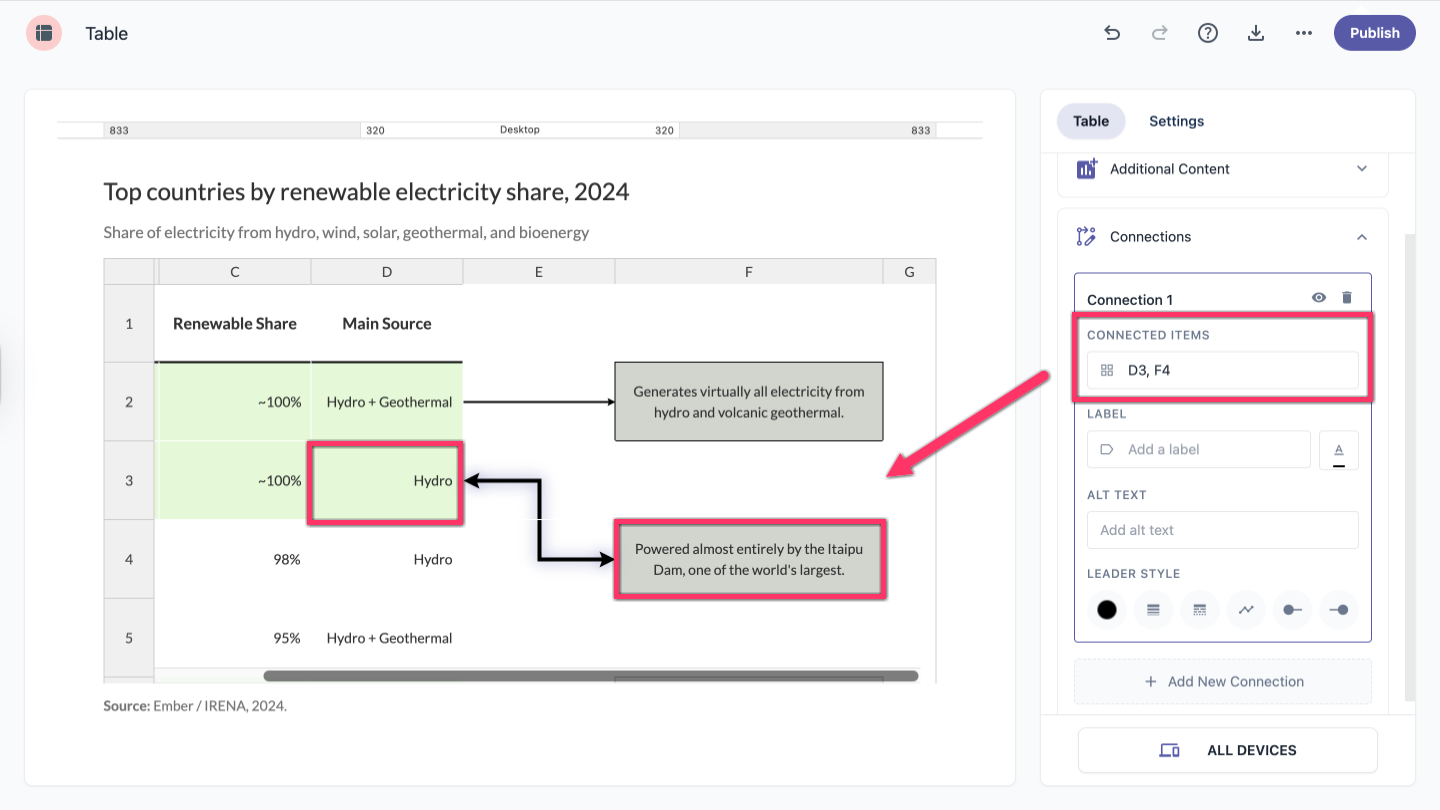
Connected items
The Connected items section at the top of the connection panel shows which two cells the selected leader line connects.
Label
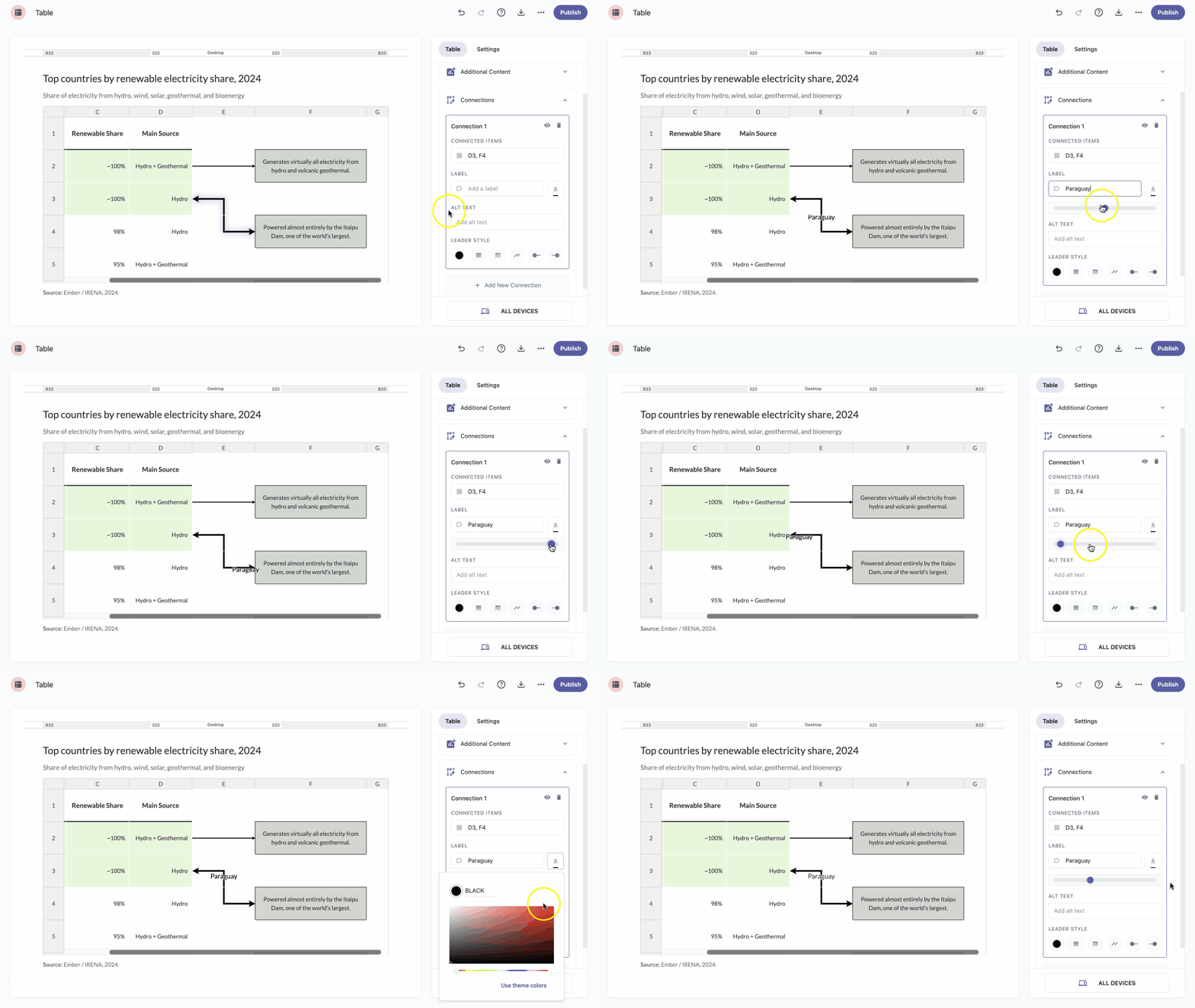
A label is the text that sits along your leader line, helping readers understand what the connection represents.
- Type your label text in the Label field.
- Drag the slider below the field to move the label along the line until it sits where you want it.
To change the label color, click the color icon next to the Label field.
Note: You can pick a color from the palette, paste a hex code, or choose one from your theme.
Alt text
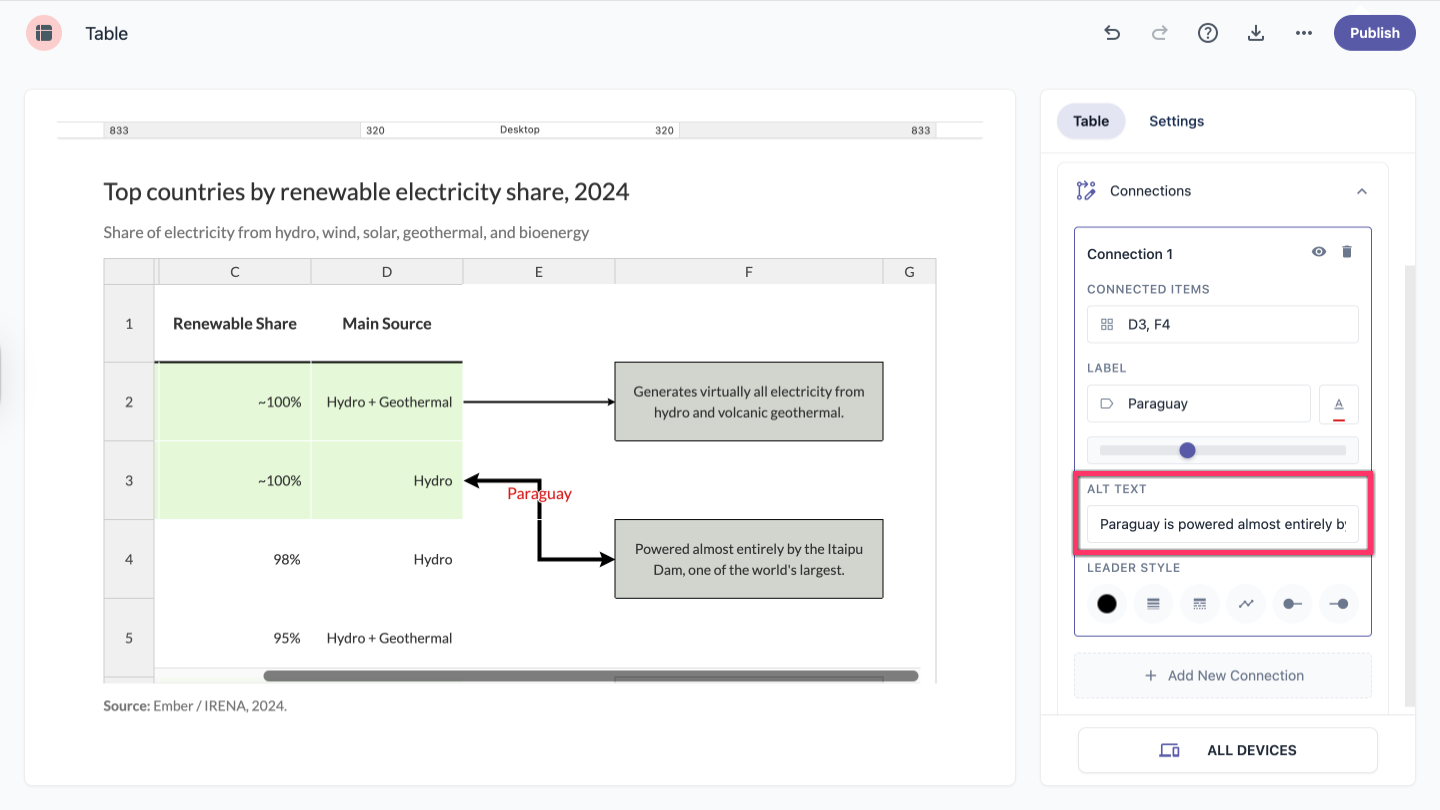
Alt text describes the leader line for screen reader users, making your table accessible to people who can't see the visual connection. To add it, type a short description in the Alt text field in the connection panel.
Leader style
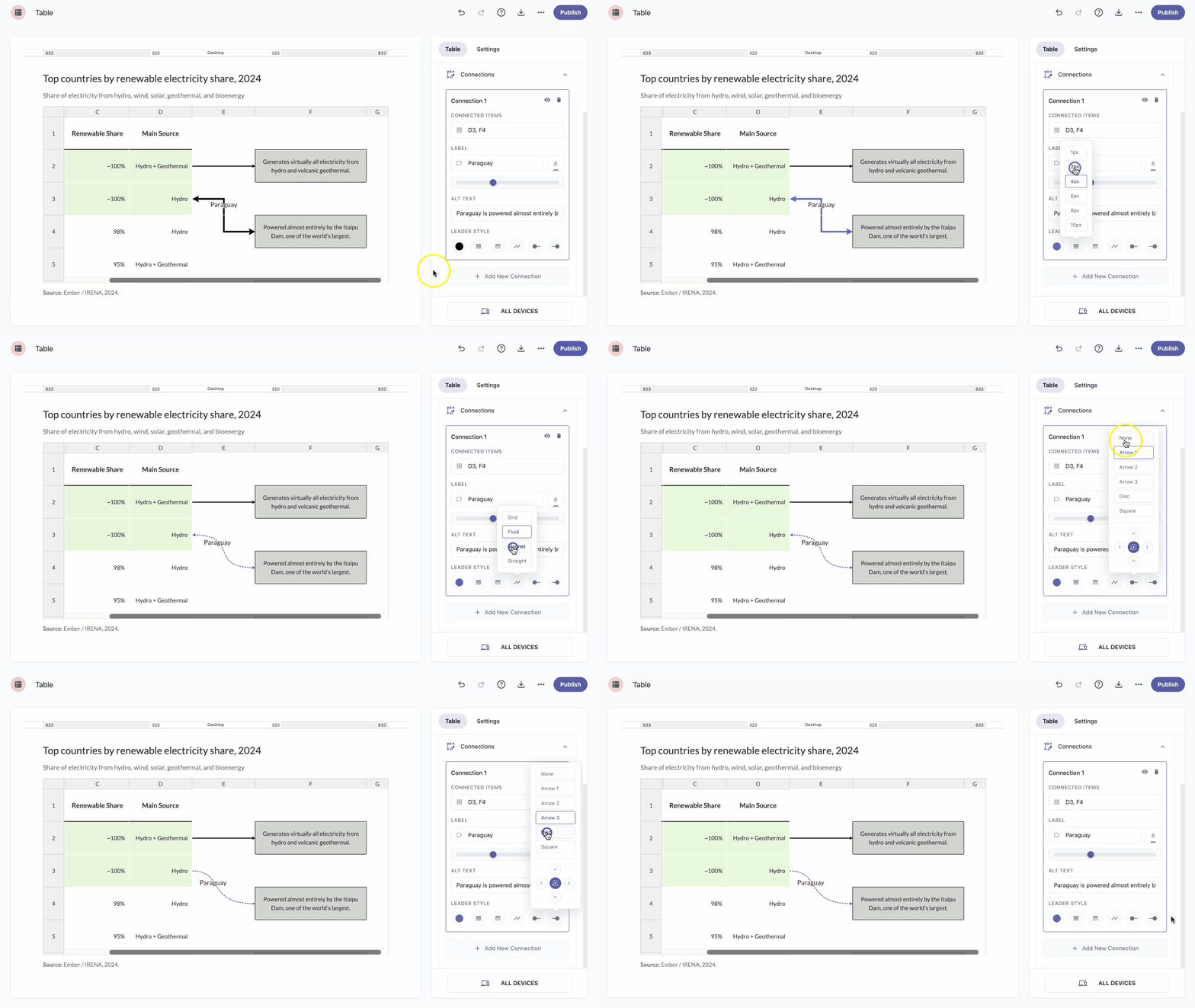
The Leader style section gives you full control over how your leader line looks:
- Color — Sets the color of the line itself. The default is black.
- Size — Sets the line thickness. You can choose from 6 sizes, ranging from 1 to 10 pixels.
- Dash style — Sets the line pattern. Choose Solid (the default), Dashed, or Dotted.
- Path — Sets how the line is routed between the two cells. Choose Grid for right-angle bends, Fluid for smooth curves, Magnet for snapped paths, or Straight for a direct line.
- Start/End arrow — Sets the look of each end of the line. Choose from 5 arrow styles, or select None to remove the arrow on either end. You can also control where the line attaches to a cell — click Top, Right, Bottom, or Left on the positioning wheel, or click Auto in the center to let the system pick the best attachment point automatically.
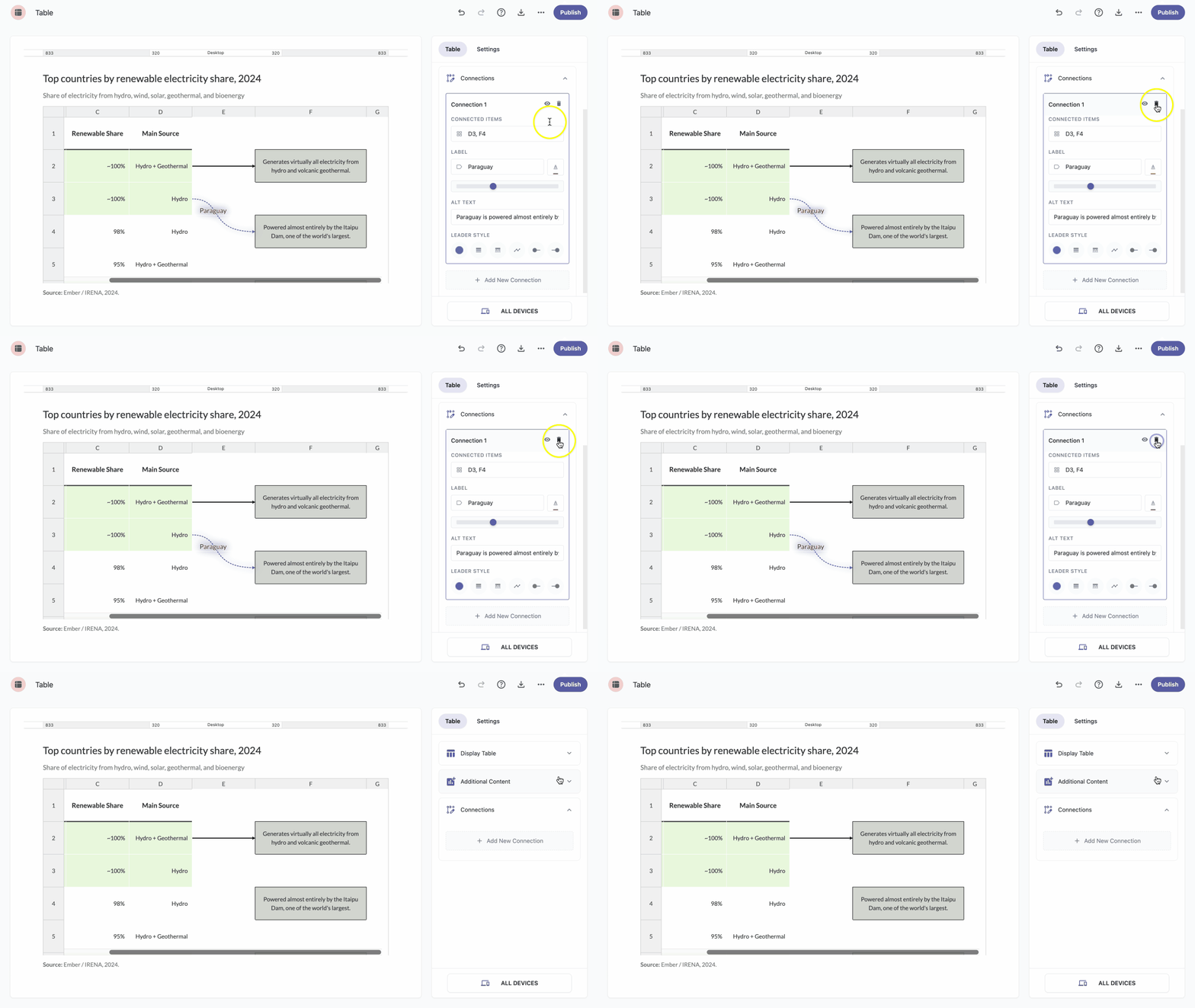
Hide a connection
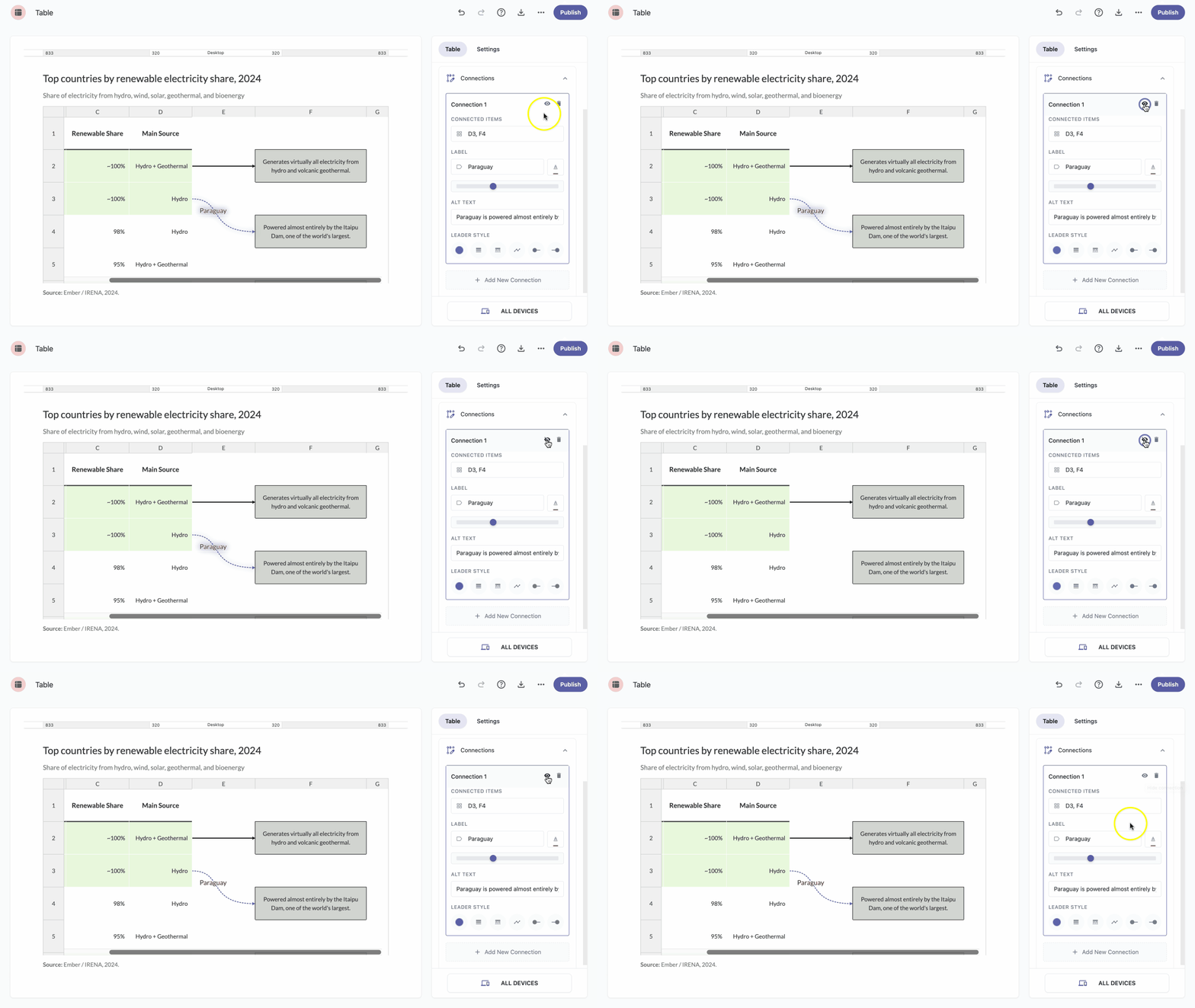
To temporarily hide a leader line without deleting it, click the preview icon in the upper-right corner of the connection panel. Click it again to make the line visible.
Delete a connection
To permanently remove a leader line from the table, click the delete icon in the upper-right corner of the connection panel.