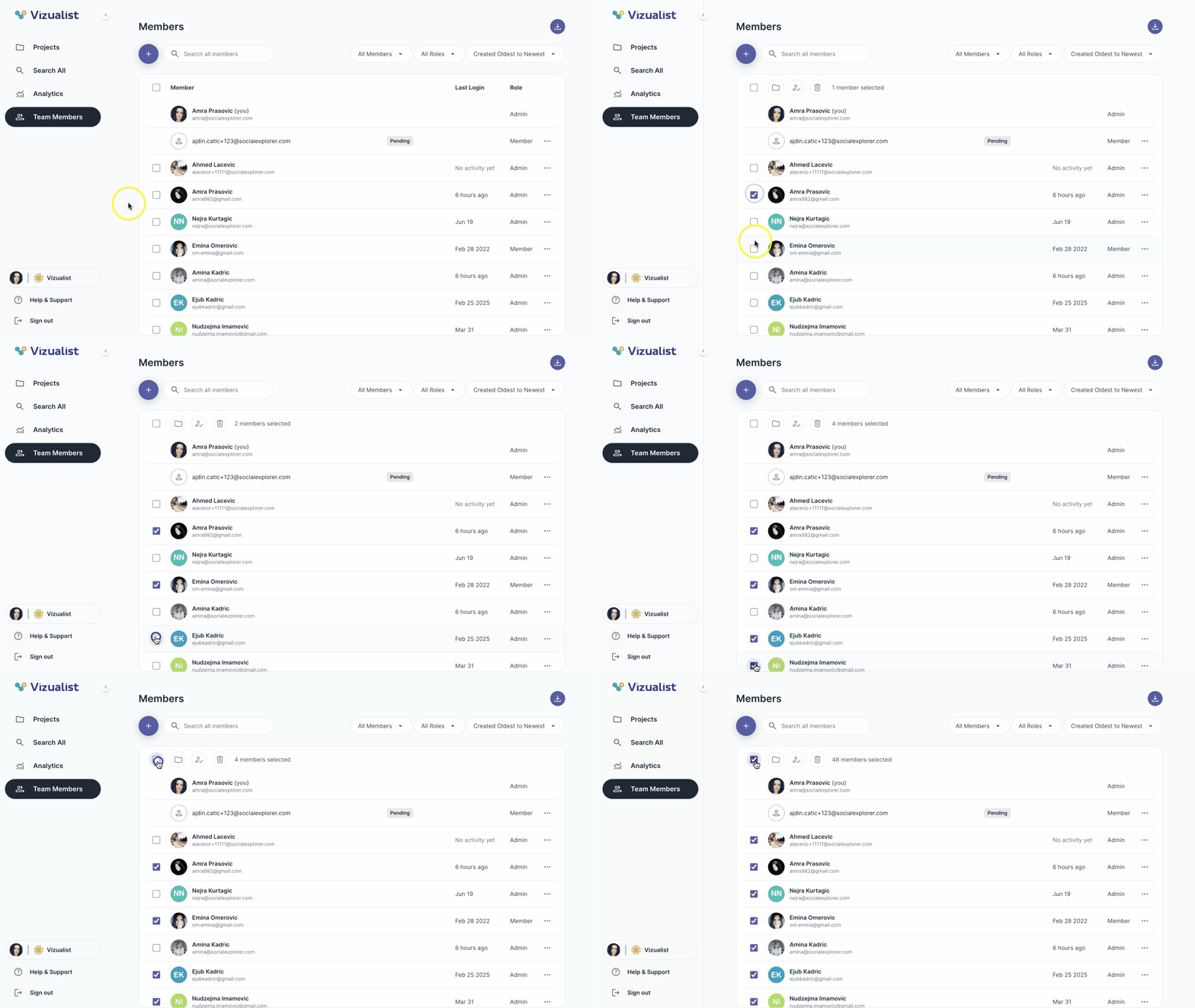
Multiple members can be selected at once, either one by one or by clicking Select all.
Once members are selected, you can choose one of the following actions:
- Assign projects folder — assigns the selected projects to all selected members
- Change roles how_to_reg — changes the role of all selected members to Admin or Member
- Remove delete — removes all selected members from the organization
| Note: When Select all is used, the total number of organization members appears next to the action options. |
| Note: Only organization admins can perform bulk actions on members. |
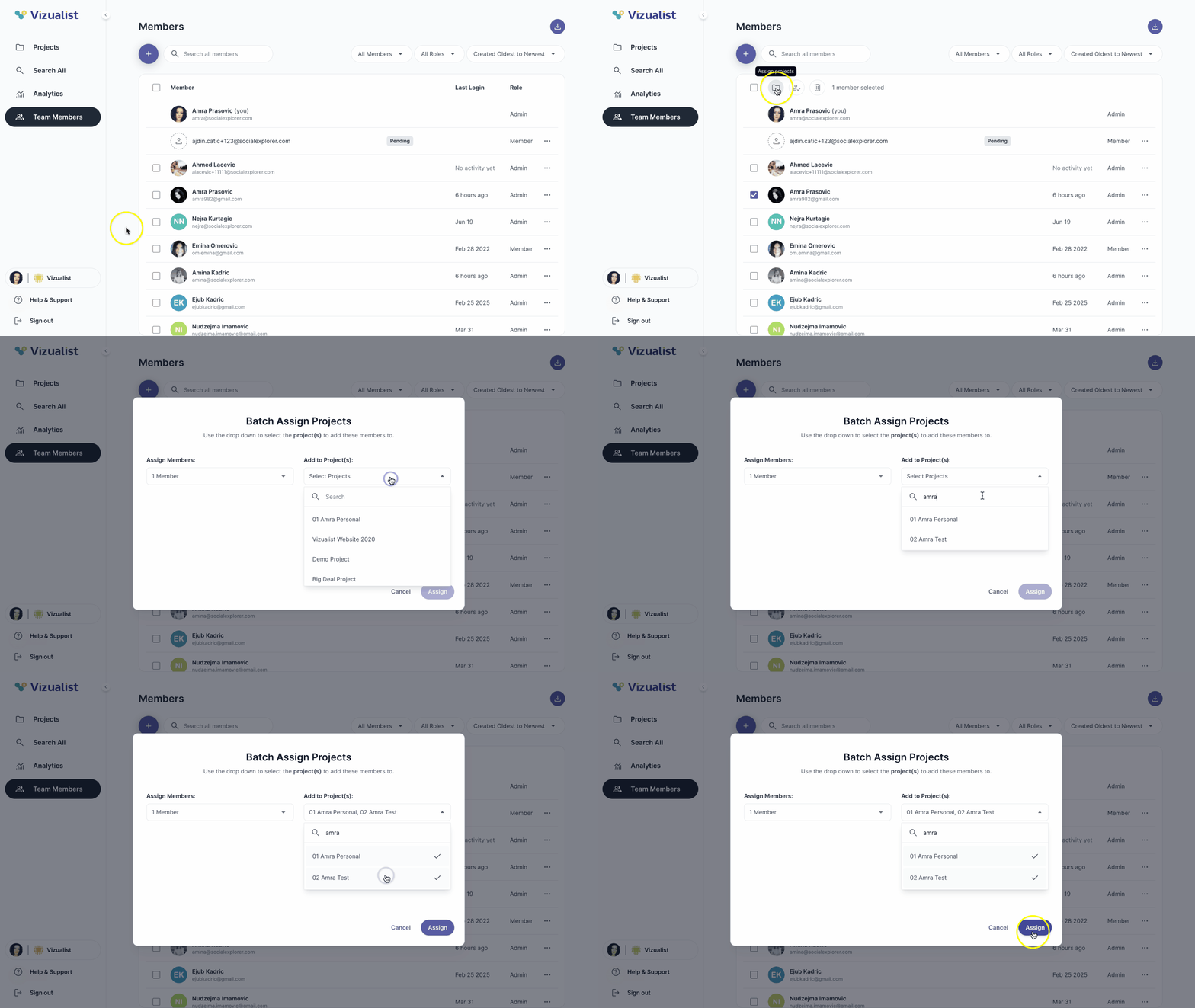
Assign projects to selected members
- Open Team Members in the organization side panel.
- Select members.
- Click the assign projects icon folder.
From the projects dropdown, select the projects you want to assign to the members.
Note: You can also search for projects in the dropdown. - Click Assign.
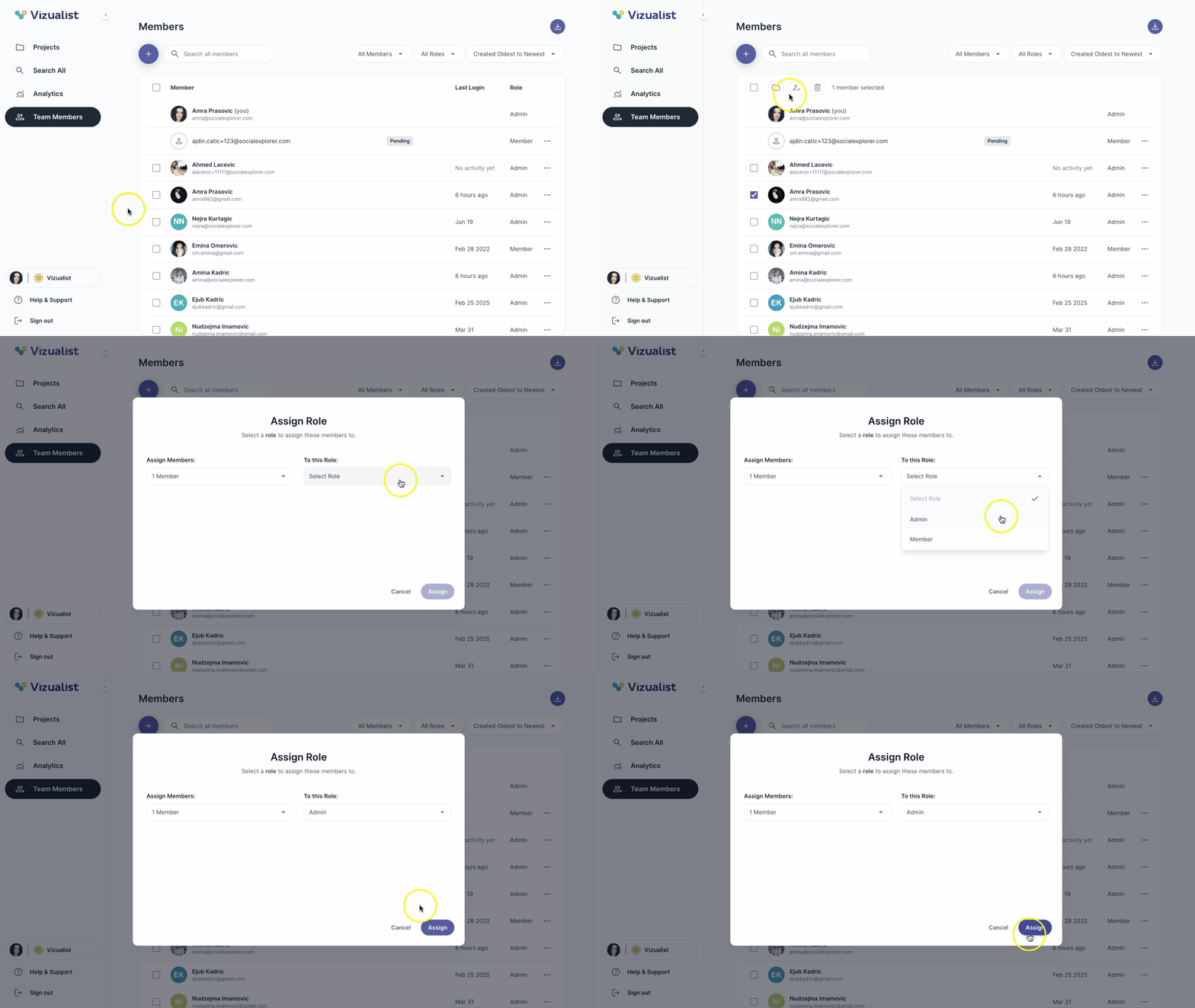
Change roles for selected members
- Open Team Members in the organization side panel.
- Select members.
- Click the change roles icon how_to_reg.
From the roles dropdown, select the role you want to assign to the members.
Note: You can choose Admin or Member. - Click Assign.
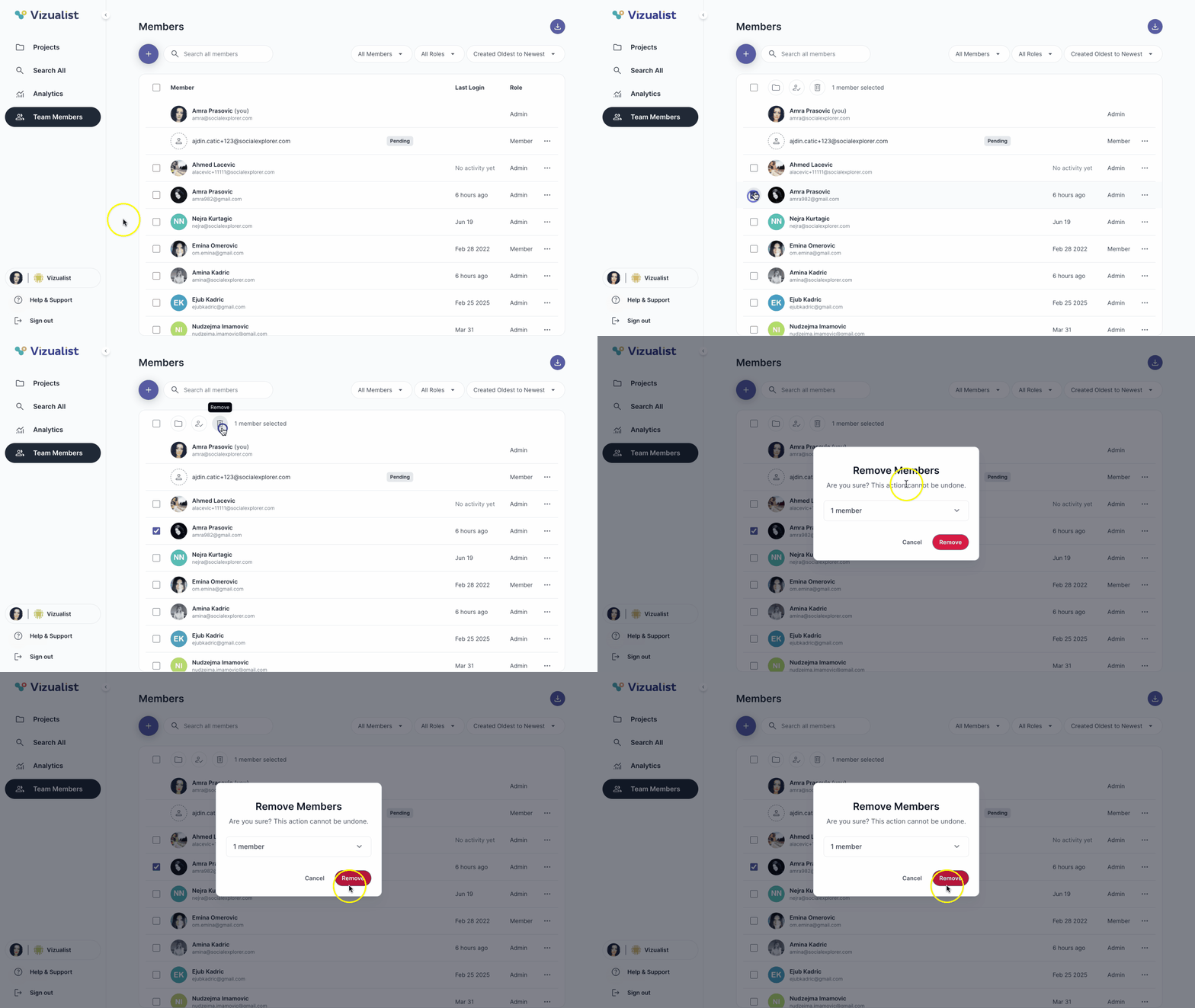
Remove selected members
- Open Team Members in the organization side panel.
- Select members.
- Click the remove icon delete.
- Click Remove.