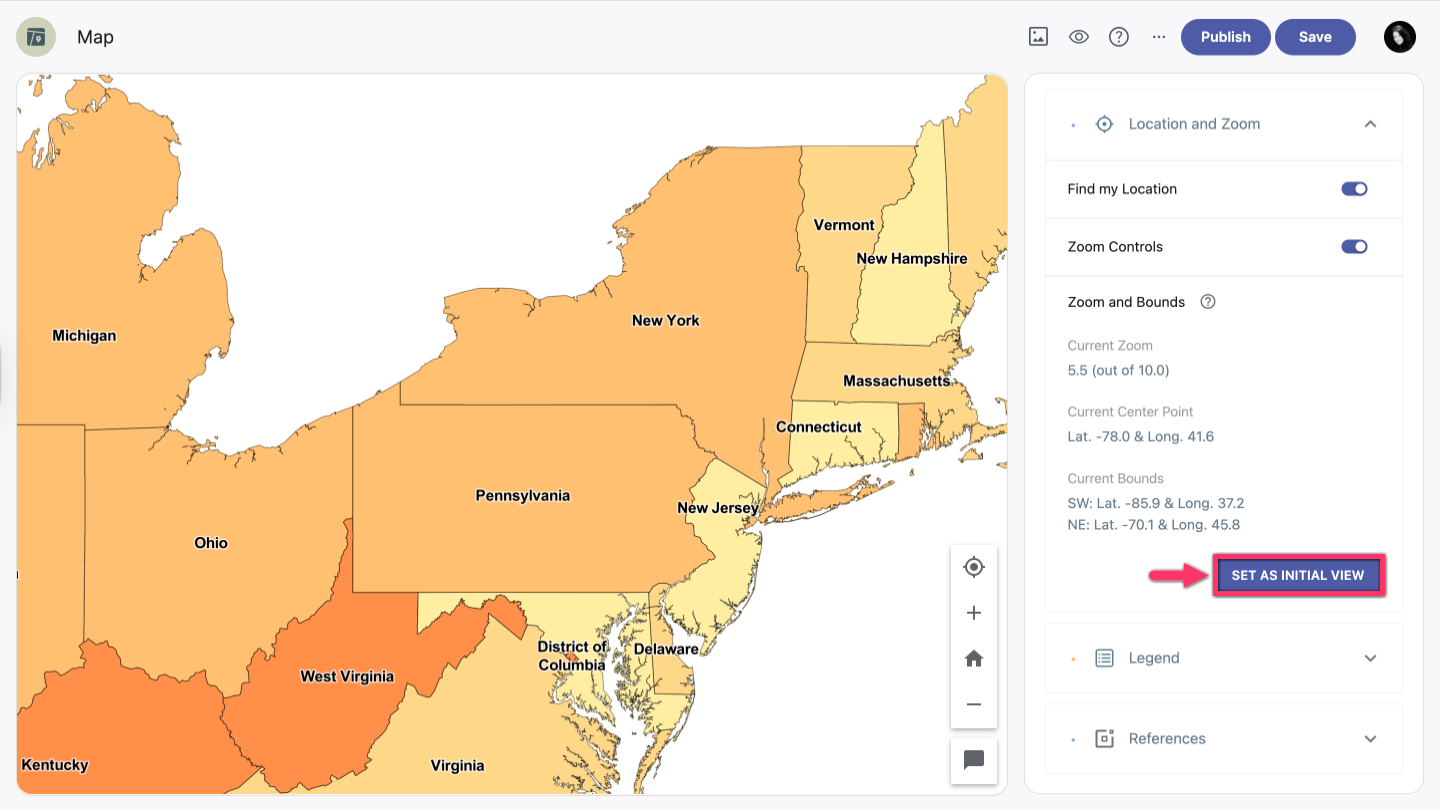
In the right-hand sidebar of your map, click the Location and Zoom dropdown.
Find my location
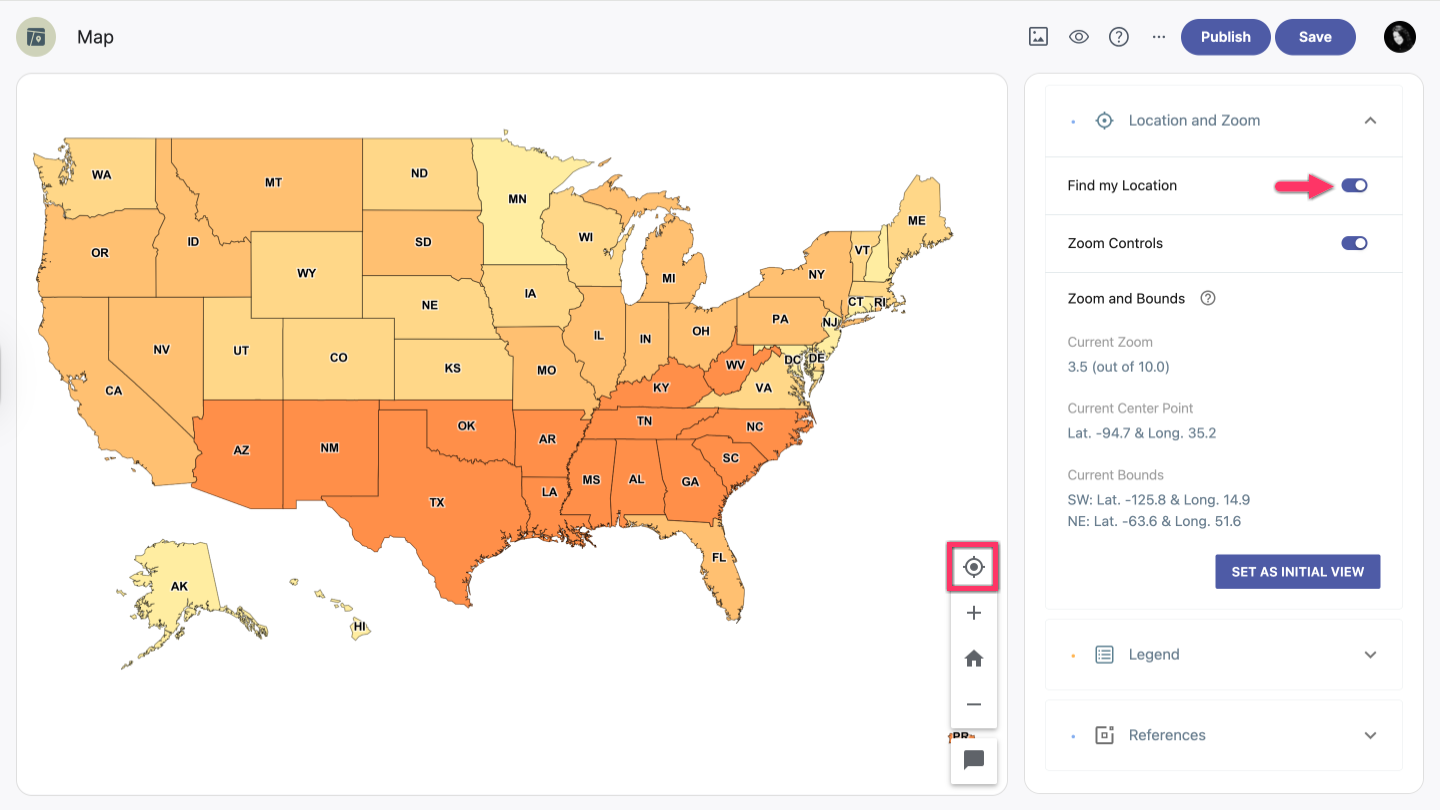
The Find my Location option shows your current location on the map.
In the Location and Zoom section, enable the Find my Location option.
Note: When this option is enabled, the location button will appear in the bottom right corner of the map. Click the location button on the map to see your location.
Note: If the location button is enabled but you don't see the pin on the map, click the Show my location button on the map again to return to your location.
Zoom controls
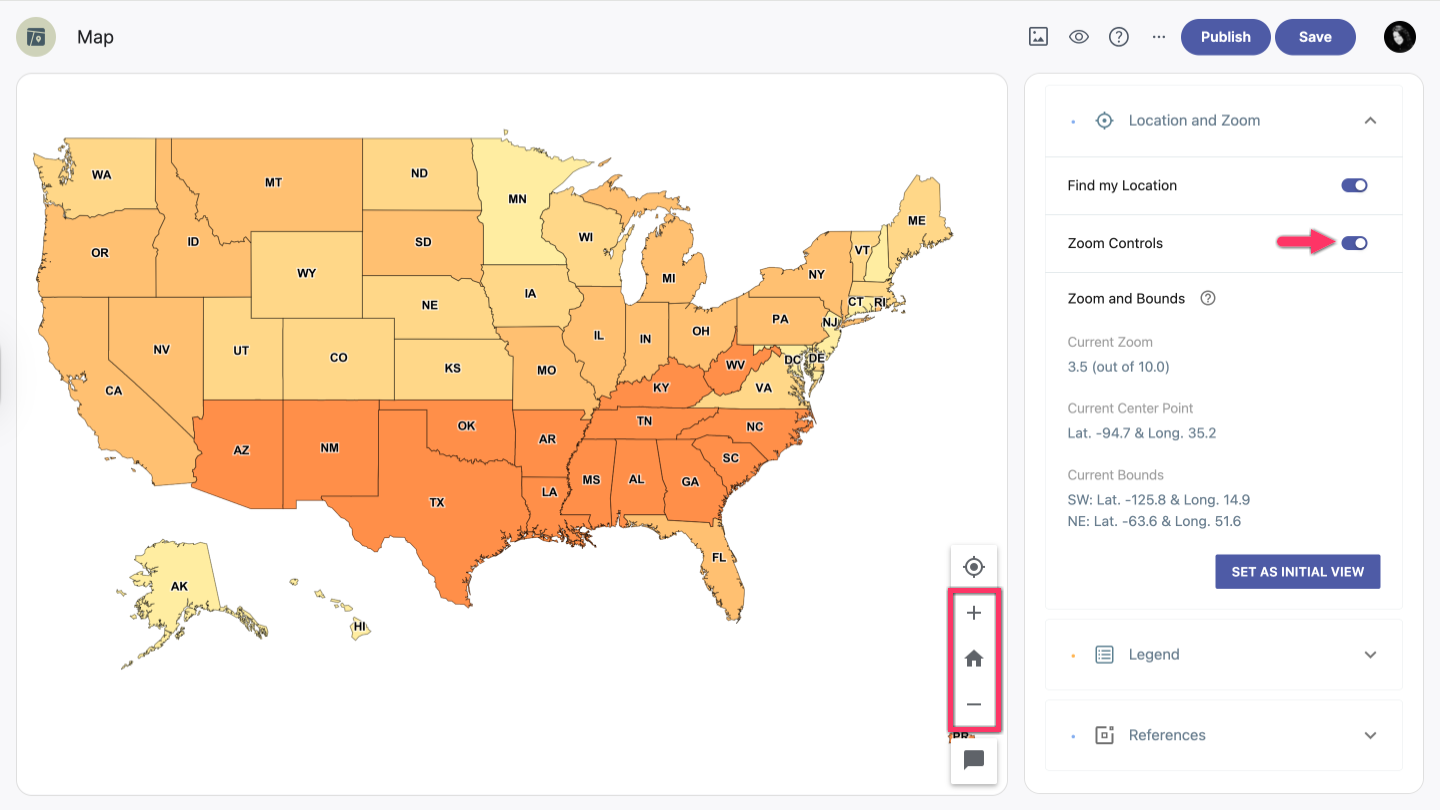
The Zoom Controls option is enabled by default and lets you zoom in and out of the map view. When enabled, the zoom-in button and zoom-out button appear in the bottom right corner of the map.
Zoom and bounds
The Zoom and Bounds information shows the current view of the map. To change the initial map view that appears when the map is loaded, adjust the view as desired and click the Set as initial view button.