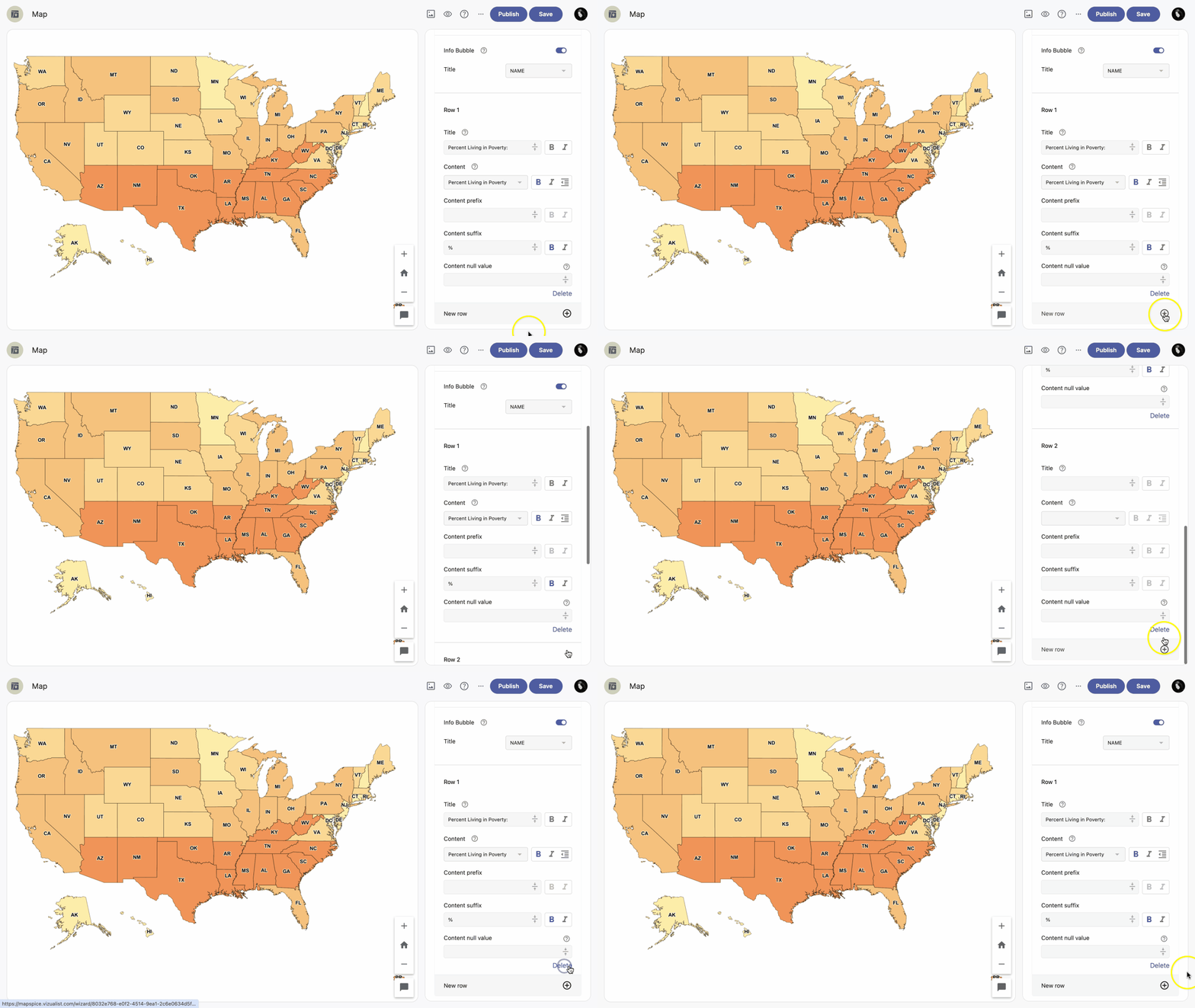
Components let you add extra information to your map. To enter the component section, click on the variable you want to edit.
Info bubble
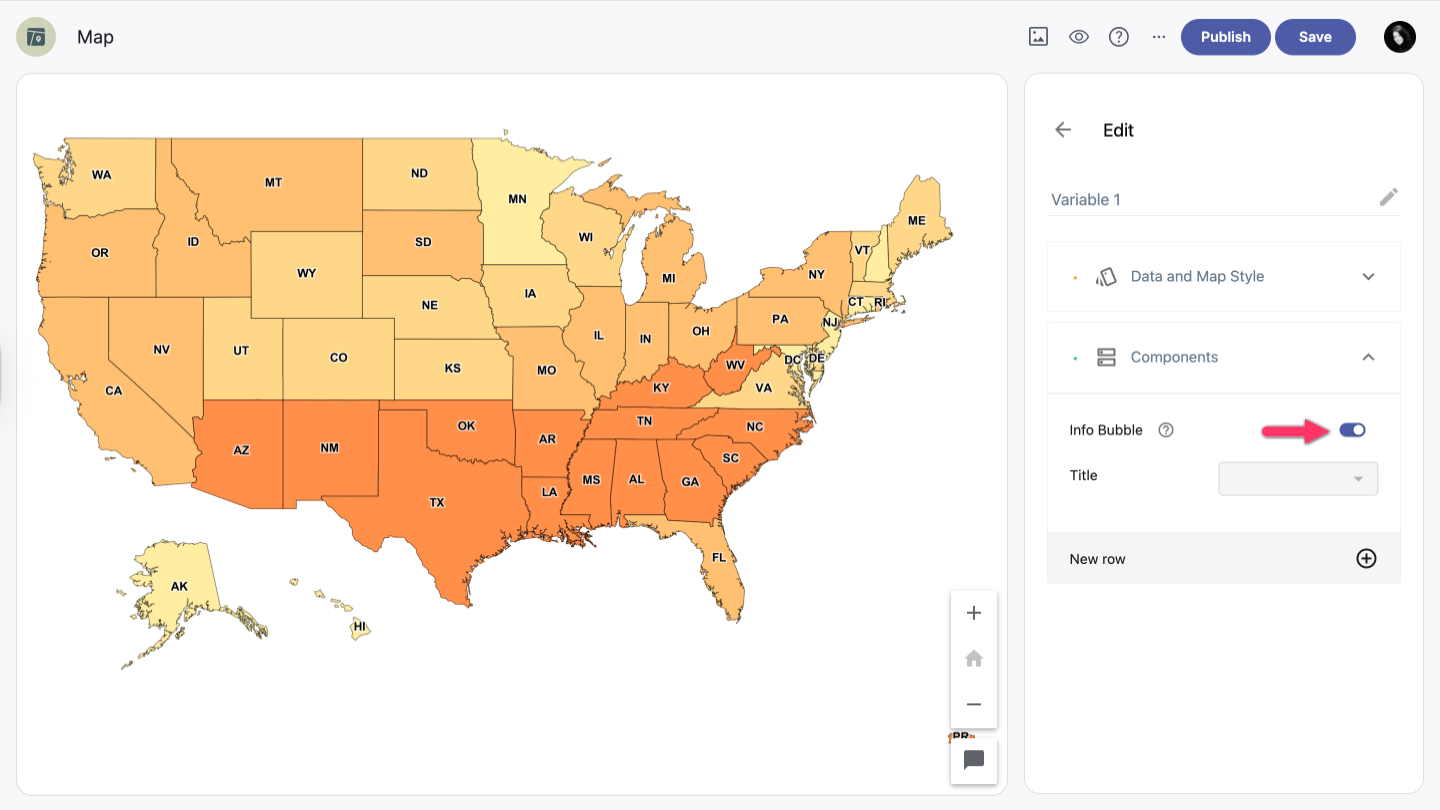
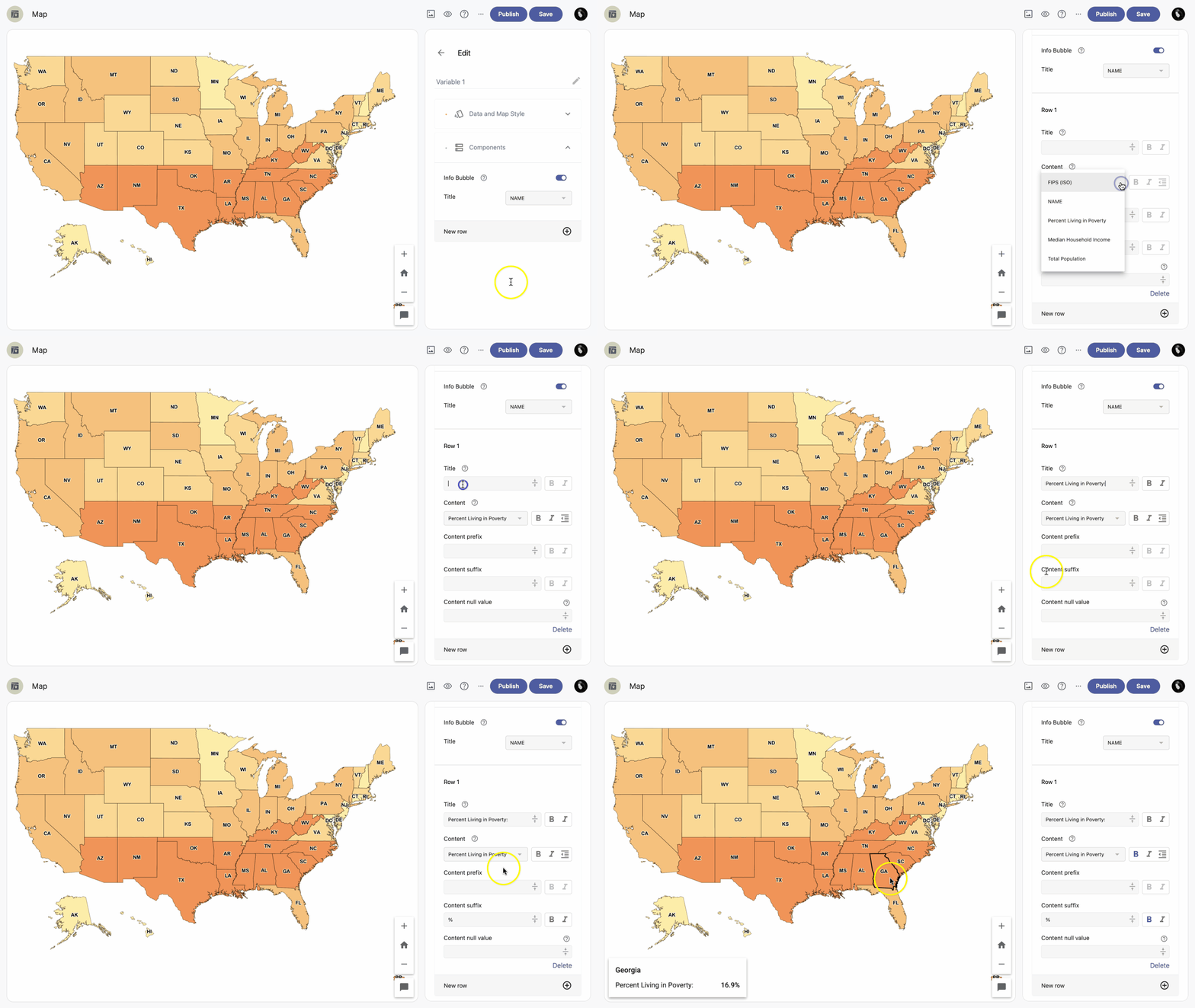
Info bubbles are small pop-up overlays that appear when you hover over or tap a geographic area on your map. To turn them on, enable Info Bubble.
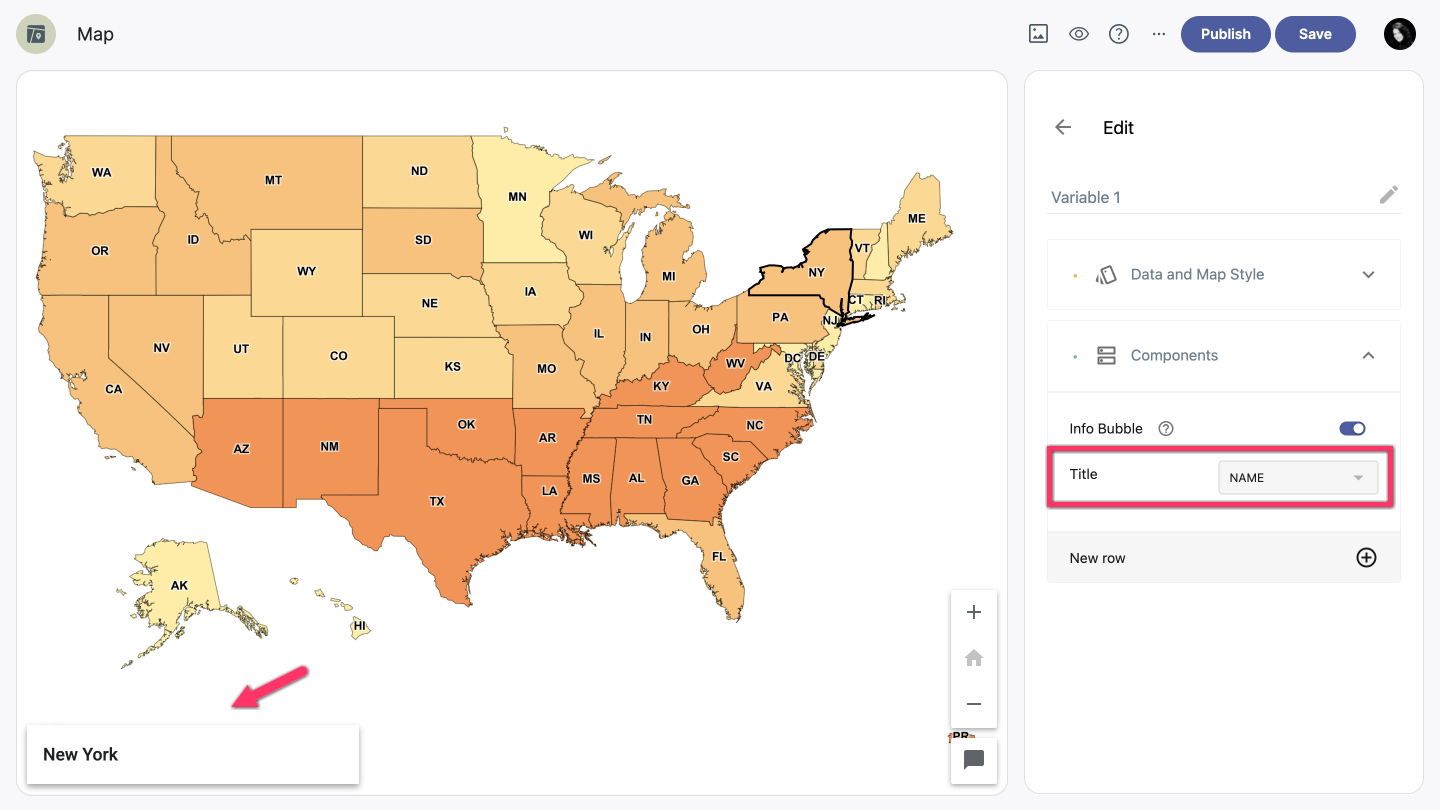
You can edit the title and content of the info bubble to provide a meaningful explanation of the value shown.
| Note: The most commonly used title is the column containing state names, world country names, or similar geographic identifiers. |
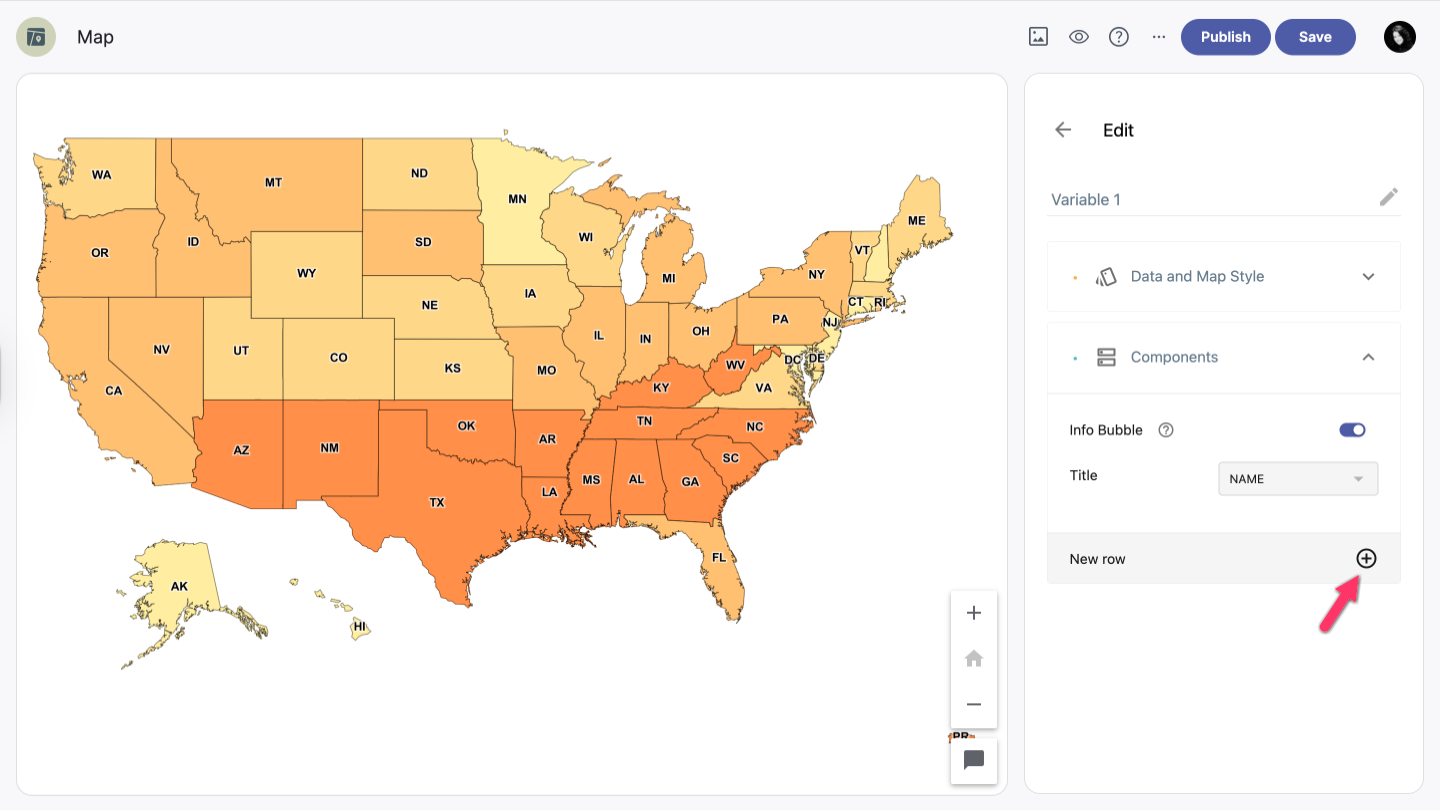
New row
To add a new row to your info bubble, click the New row icon in the bottom right corner.
Edit row
For each row, you can set a title, content, prefix, suffix, and null value.
- Title — Add or edit the title, and apply bold or italic styling.
- Content — Click the dropdown icon to choose which value appears in the row. You can also apply bold or italic styling and add indentation.
- Content prefix and suffix — Add a prefix or suffix to the content row by clicking the text field and entering your value.
- Content null value — Override the default null value to provide a meaningful explanation when no data is available (for example, No available data).
Add and delete row
To add another row to your info bubble, click the New row icon in the bottom right corner.
To remove a row, click the Delete button in the bottom right corner of the row section.