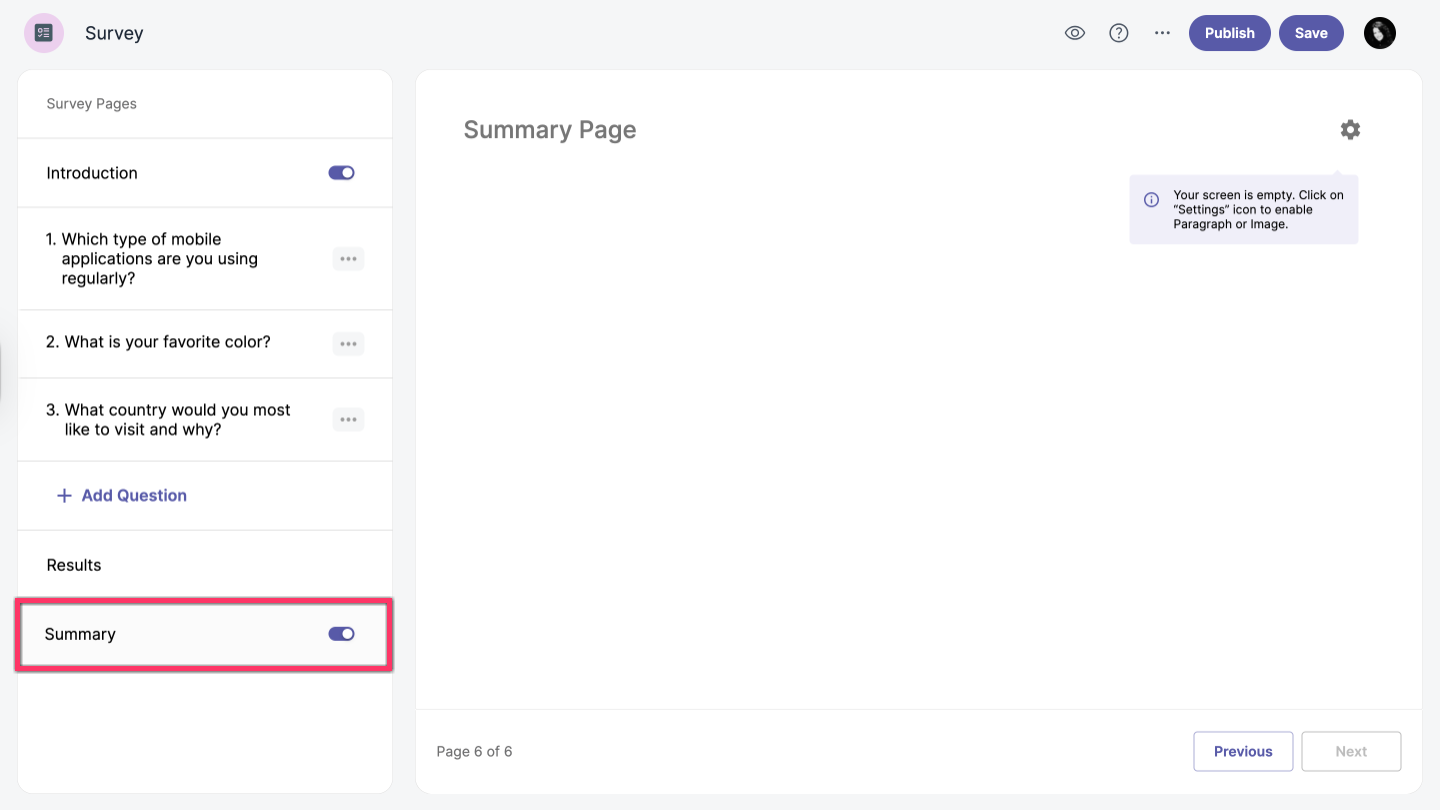
When you create your survey, you will be redirected to the Vizualist Surveys editor. You can add or remove the summary page by enabling or disabling the Summary option in the left-hand sidebar.
Edit summary page
The summary page includes two settings: Paragraph and Image. All options are optional—you can add both, only one, or none.
Add description
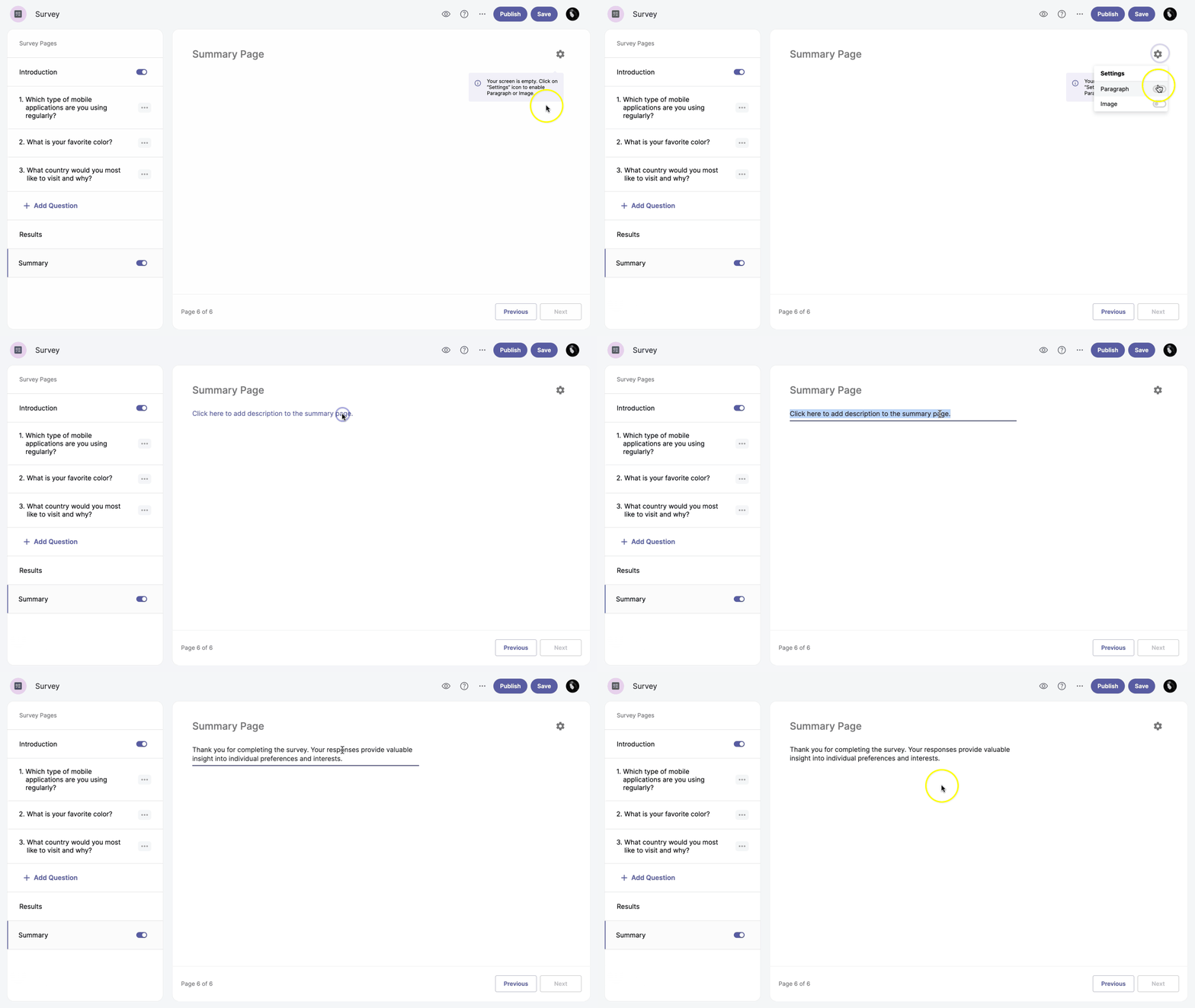
You can add a description to your summary page by enabling the Paragraph setting.
- Enable the Summary page.
- Click Summary Settings in the top right corner.
- Enable the Paragraph option .
- Enter your description text.
Add image
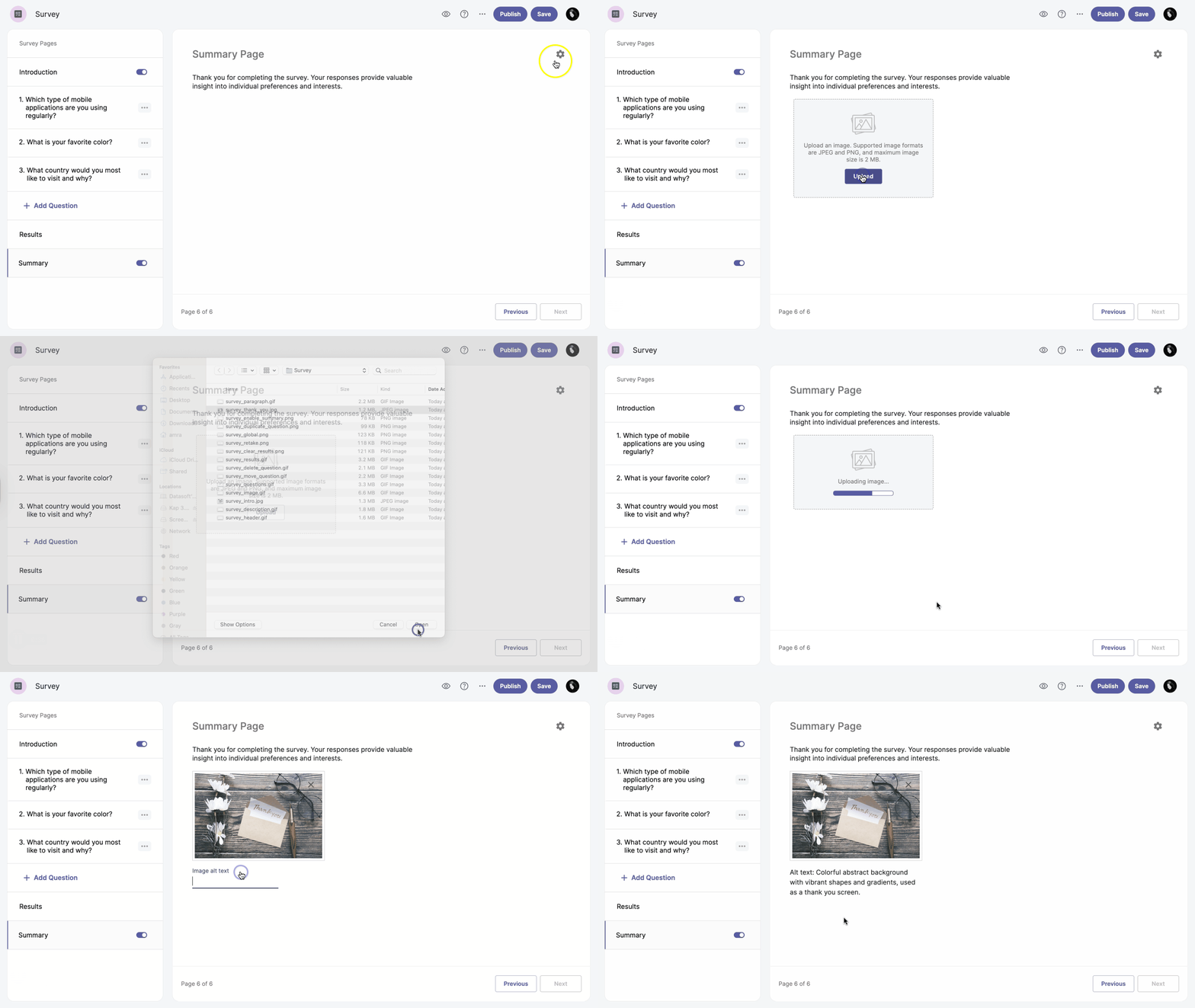
You can enhance your summary page by adding an image.
- Enable the Summary page.
- Click Summary Settings in the top right corner.
- Enable the Image option .
Click Upload and choose a file from your computer.
Note: Supported image formats are JPEG and PNG, and the maximum file size is 2 MB. Add image Alt text below the image.
Note: Alt text is used by screen readers to describe images for users with visual impairments.